LiteTracker helps teams stay in sync without drowning in pings. Notifications are the signal that pulls attention to important activity: mentions, comments, state changes, and new stories. This guide walks through how to configure LiteTracker notifications so you get the right alerts, in the right place, at the right time.
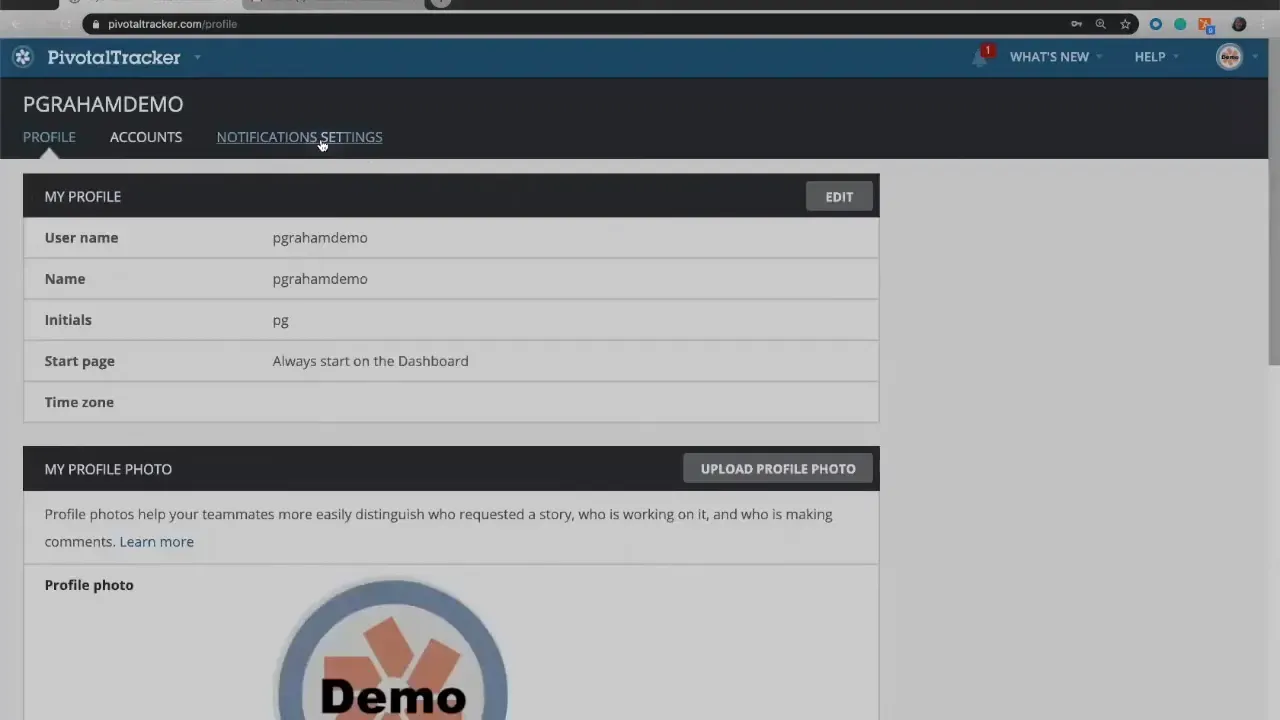
Step 1: Open your profile and find notification settings
Start from the top-right of the app and open your profile. LiteTracker puts notification controls inside your account area so each user can tailor alerts to their personal workflow. From here you can choose whether to receive notifications in the app, by email, or via integrations like Slack.
Step 2: Configure in-app notifications
In-app notifications appear under the bell icon. Click the bell to reveal a dropdown with filters for unread items, mentions where someone used @yourname, or notifications limited to the current project.
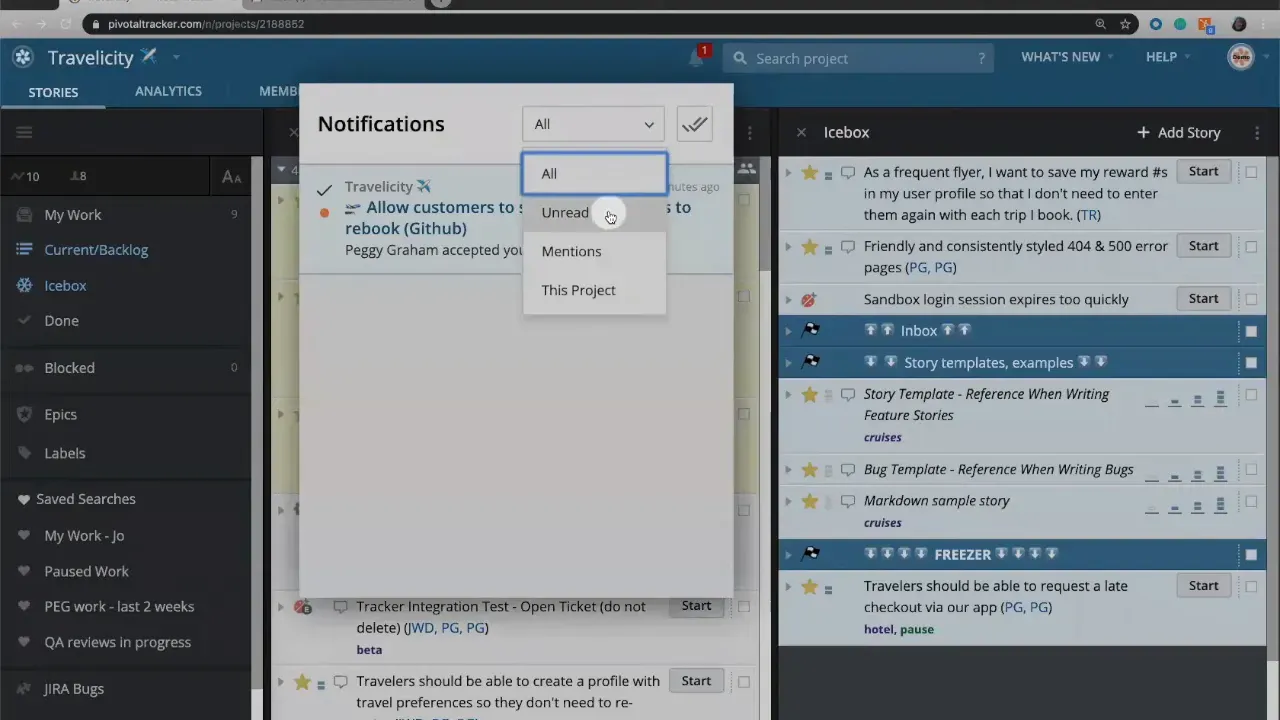
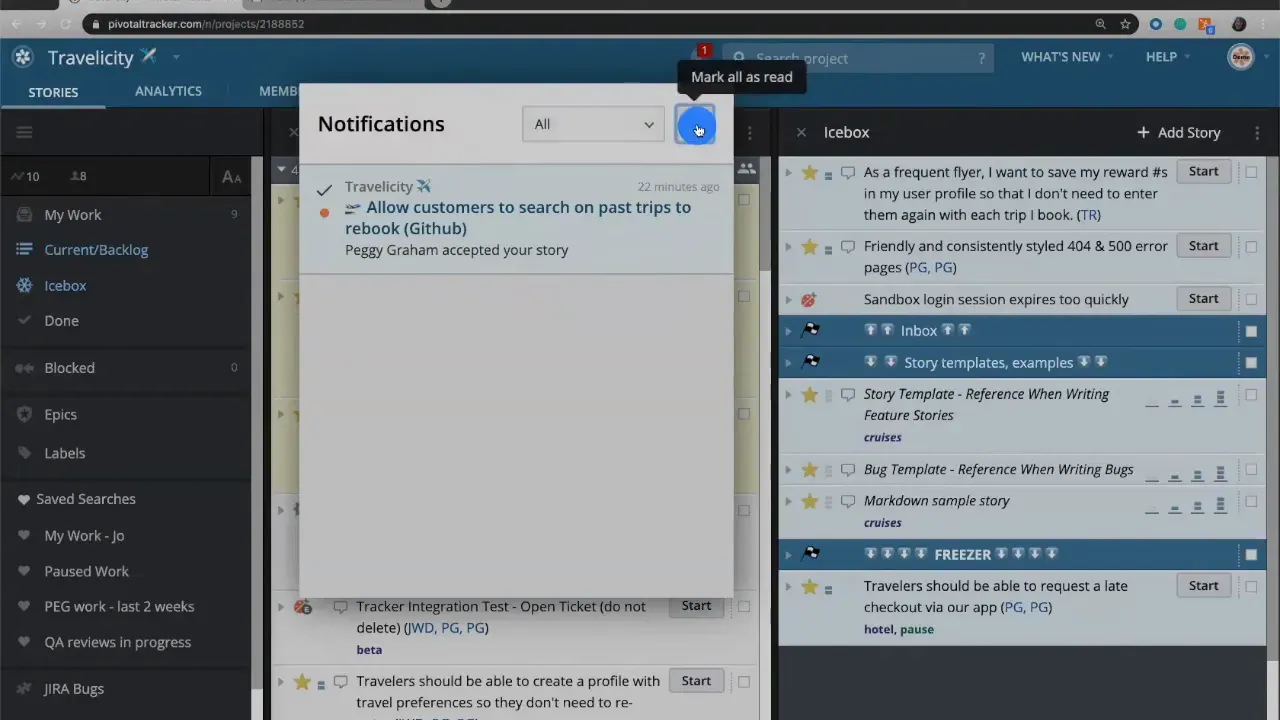
Use these filters to triage quickly. Marking all notifications as read will clear the bell indicator and remove the visual alert from your browser tab. That red dot on the tab is a handy way LiteTracker reminds you something needs attention when you are working in other tabs.
Tips:
- Use the mention filter to find items that need your direct input.
- Clear notifications regularly so the bell reflects only current work.
- If a project is noisy, consider using project-level exclusion (next step) rather than clearing everything.
Step 3: Set up email notifications
If you prefer email, LiteTracker sends clear, actionable messages that include the comment or mention and a direct link to the story. Emails show the context so you can decide whether to click through or resolve the item later.
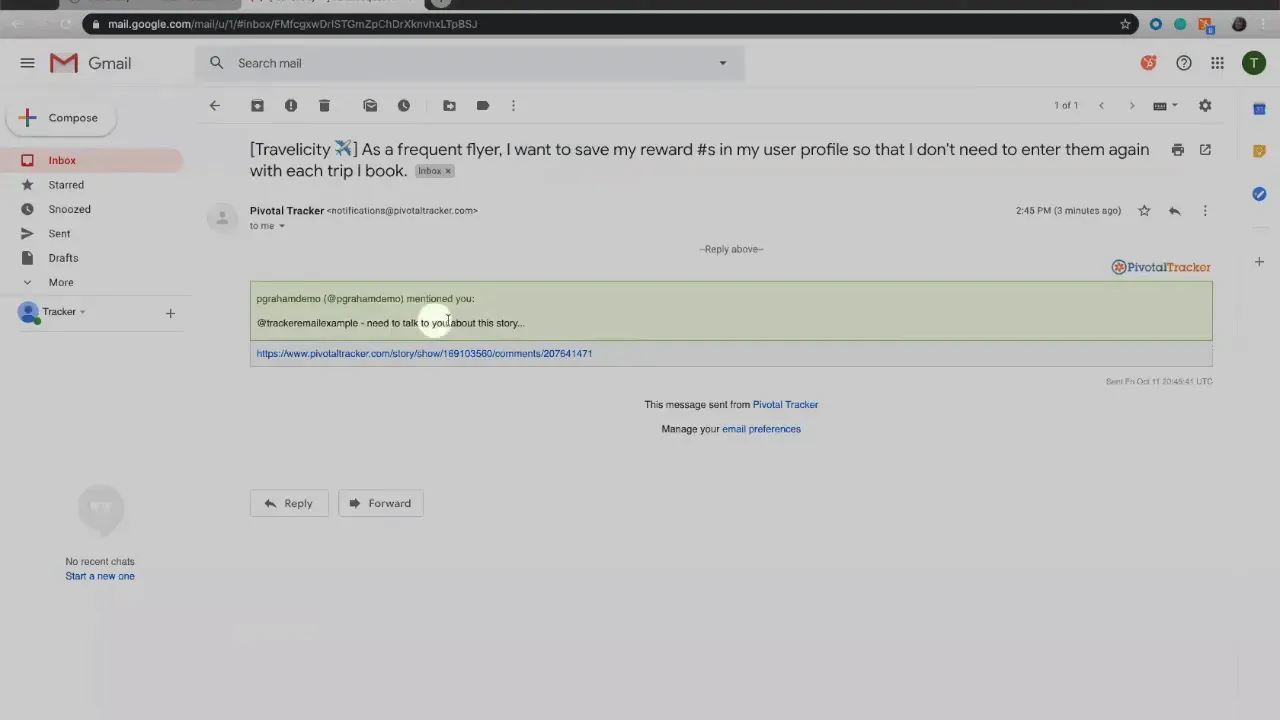
Email notifications are useful when you are not actively using the app or when you want an external record of activity. Configure which events trigger emails in your notification settings so your inbox stays useful instead of noisy.
Step 4: Exclude or include entire projects
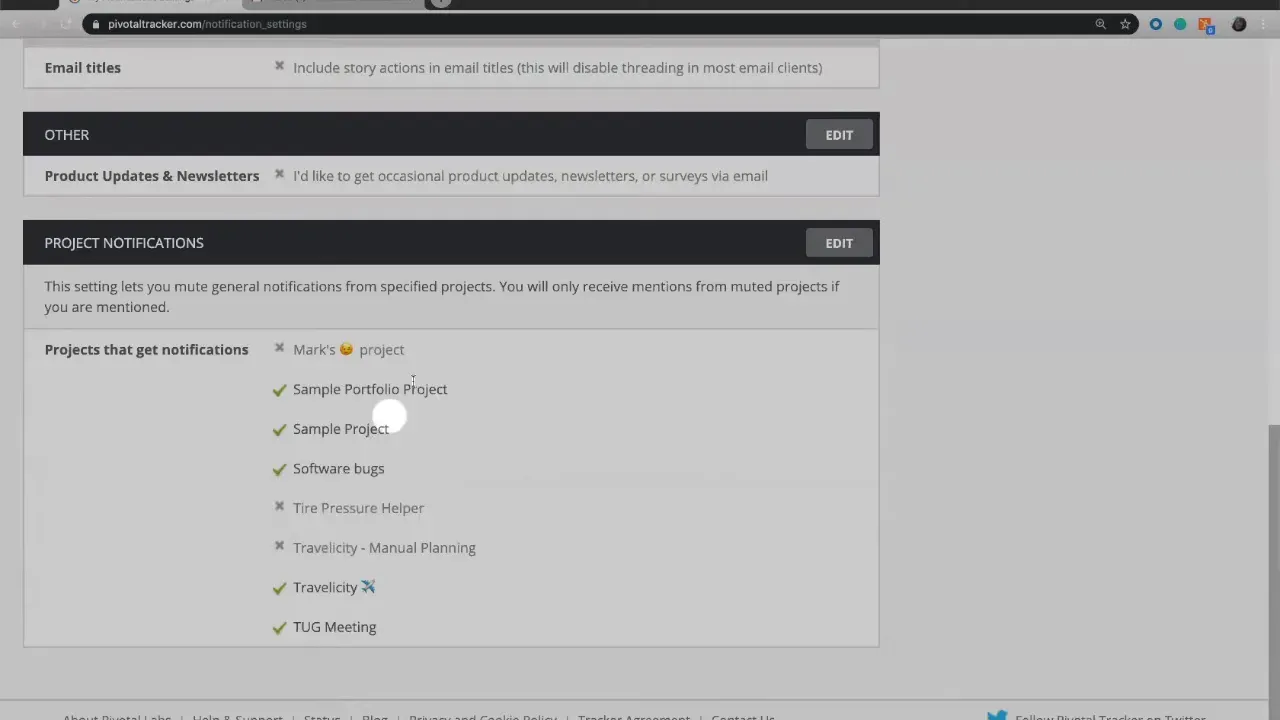
Not every project deserves the same attention. LiteTracker lets you include or exclude specific projects from your notifications. If a project is purely reference or archival for you, turn off notifications for it entirely so you only receive updates for active priorities.
- Open notification settings in your profile.
- Find the project list and toggle projects on or off.
- Excluded projects will not produce in-app, email, or integration notifications for you.
Step 5: Use integrations like Slack for fast interaction
LiteTracker integrates with Slack so notifications can appear where your team already communicates. When a LiteTracker story posts in Slack it will unfurl so you can see key details without jumping into the app. From Slack you can do more than read: you can update a story state, add comments, or even create a brand new story.
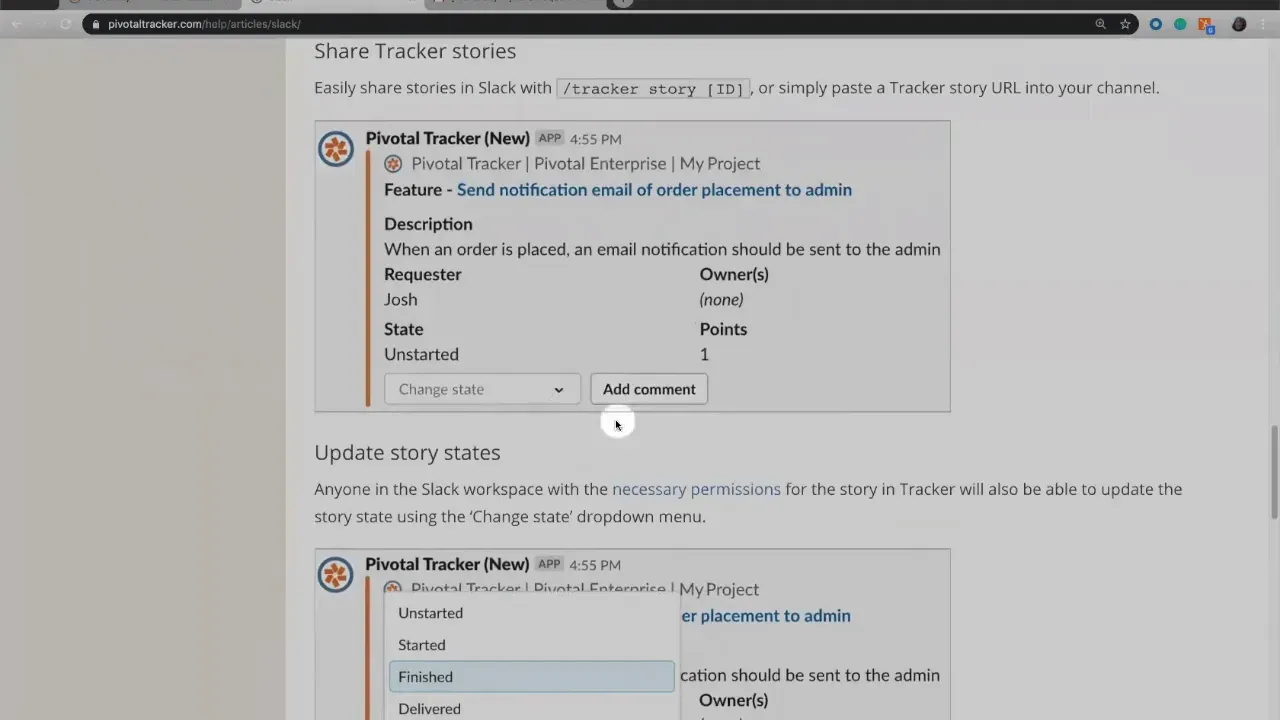
Integrations reduce context switching. If your team lives in Slack, enable the integration and fine tune which types of alerts post to which channels.
Step 6: Practical workflow examples
Here are a few common ways people use LiteTracker notifications effectively:
- Focus mode: Disable email and Slack, keep only in-app mentions enabled. Use the bell to see only what directly asks for your attention.
- Manager mode: Keep email summaries on for project status changes, and Slack notifications for blockers so you can respond quickly.
- Deep work: Temporarily exclude noisy projects and turn off non-urgent emails. Let the bell and mentions surface only critical items.
Adjust these combos in your profile whenever your role or priorities shift. LiteTracker is flexible enough to match changing workflows.
Step 7: Quick maintenance and best practices
- Review notification settings every sprint to match workload.
- Use mention filters to prioritize direct requests.
- Keep email templates concise so every message has the context to act or archive.
- Train teammates to use @mentions for things that actually need attention and comments for updates.
FAQ
How do I stop receiving notifications from a specific project?
Open your profile, go to notification settings, and find the project list. Toggle off the projects you do not want notifications from. That will prevent in-app, email, and integration alerts for those projects.
Can I get LiteTracker notifications inside Slack and still reply from Slack?
Yes. Slack notifications unfurl story details and allow actions such as changing the story state, adding comments, and creating new stories directly from Slack. Check the integration help for setup details.
What does the red dot on the browser tab mean?
The red dot indicates unread LiteTracker notifications while you are in a different tab. Clearing notifications removes the dot and clears the bell indicator.
How do email notifications show the context of a comment or mention?
Email notifications include the comment or mention text and a direct link to the story in LiteTracker so you can read full context and jump to the story if you need to act.
Is it possible to mark all notifications as read in-place?
Yes. From the bell dropdown you can select the option to mark all notifications as read. That clears the bell and the tab indicator at once.
What is the best starting configuration for a new user of LiteTracker?
Enable in-app mentions and email for direct mentions, keep Slack integration enabled only for high-priority channels, and exclude projects that are not part of your regular work. Tweak settings after a week based on what still feels noisy.
“They need to talk to me about that story.”
This example shows how a single comment can convey urgency. LiteTracker surfaces that comment through the bell, email, or Slack so you can respond with the appropriate level of attention.
Final notes
LiteTracker notification controls let you choose where and when you receive updates. Use profile settings to route alerts to the channel that fits your role, exclude projects that distract, and leverage integrations to reduce context switching. With a few simple adjustments you can make notifications work for you instead of against you.
Link placeholders and suggestions
No external URLs were provided with the link list. When you have URLs to include, add them at the places below using the suggested anchor texts (each 1–3 words):
- Step 1 paragraph — "notification settings"
- Step 2 paragraph — "in-app"
- Step 3 paragraph — "email notifications"
- Step 4 paragraph — "project list"
- Step 5 paragraph — "Slack"
- Step 7 paragraph or FAQ — "mark all"
Provide the URLs and I will produce a version of the article with those exact anchor texts linked in the suggested spots.
Credits: This tutorial is created based on this original video Notifications and how to manage them