LiteTracker: How to Adjust Team Strength and Iteration Length for Accurate Capacity
LiteTracker makes it simple to reflect real world changes like holidays, conferences, and temporary hires so your team capacity stays accurate. This guide walks through Step 1 through Step 3 to adjust team strength, change iteration length, and run temporary what-if velocity overrides. Follow these steps to keep your backlog aligned with actual availability and avoid misleading velocity calculations.
Step 1: Change team strength to match real availability
Team strength in LiteTracker lets you reflect how much of the full team is available for a given iteration. Click the small peg-people icon at the top of the iteration to open the team strength control. Use this control to set percent availability below 100 percent when people are on vacation or at a conference, or above 100 percent when you have temporary help.
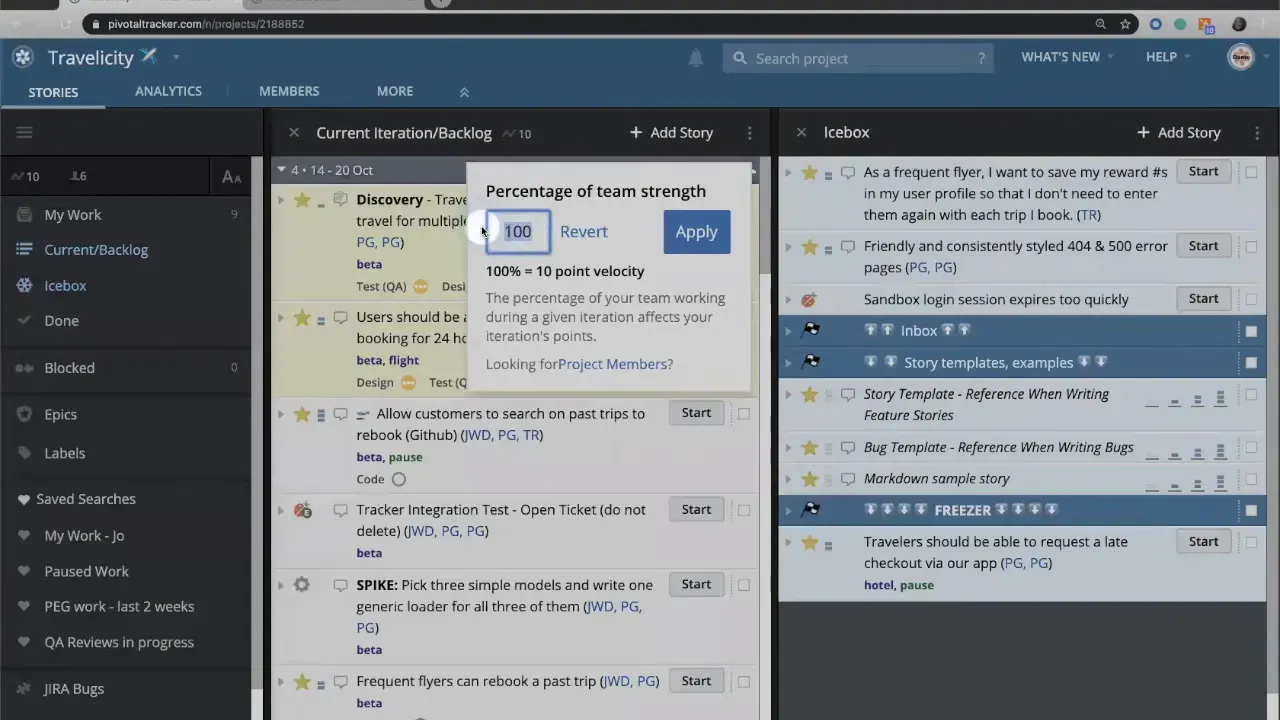
Example scenarios are easy to model. If your calculated velocity is 10 but half the team will be out, set team strength to 50%. LiteTracker will then plan that iteration around roughly 5 points of capacity instead of 10. That prevents the iteration from being overfilled and preserves your running velocity metric for future iterations.
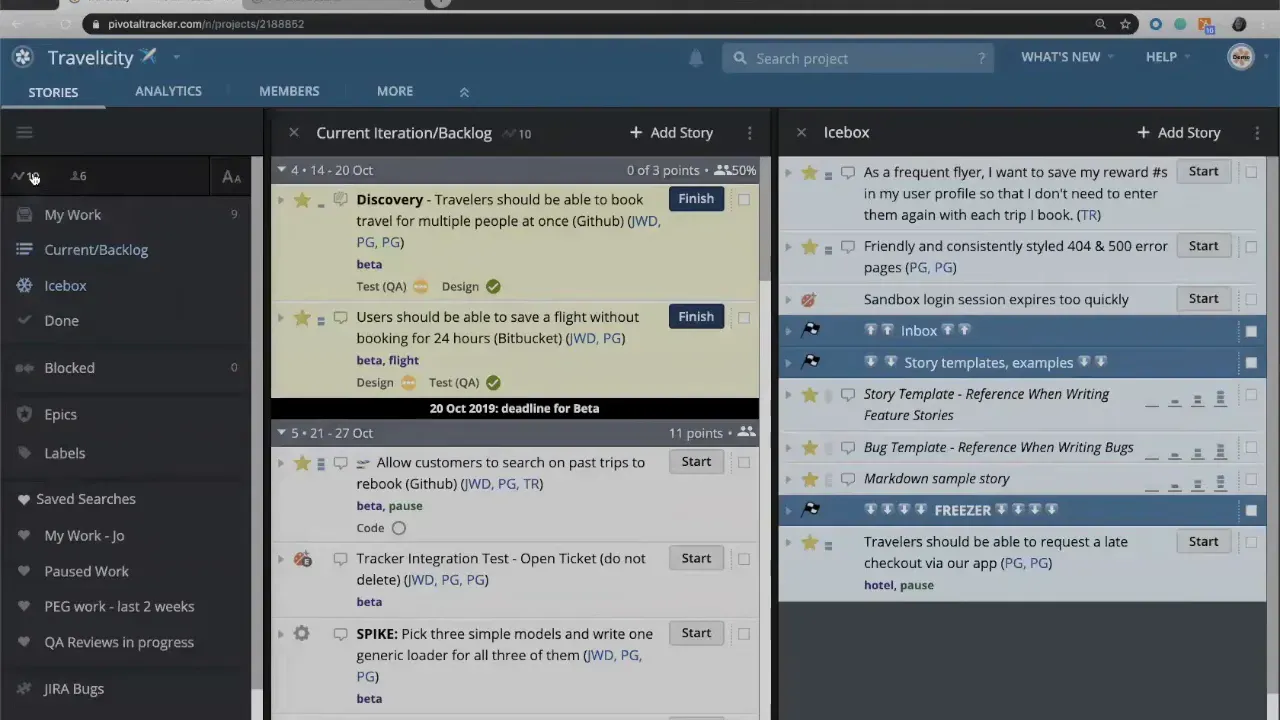
You can also increase team strength. If an intern joins for the sprint or contractors lend a hand, setting team strength above 100% increases the iteration capacity. In a demo, increasing team strength to 125 percent moved a base velocity of 10 up to an available 11 points for that iteration. LiteTracker does the rounding and allocation so you do not need to calculate every edge case manually.
Use team strength whenever a known change in availability will affect how much work the team can reasonably complete in that specific iteration. Team strength changes persist for that iteration so the rest of your metrics remain stable.
Step 2: Adjust iteration length for one-off sprints and extended work
Iteration length in LiteTracker controls how many working days the iteration represents. Change iteration length to plan around short one-week hotfix sprints or extended two-week hardening efforts without affecting long-term velocity.
If your normal cadence is one week but you need a two-week hardening window for an upgrade or a large refactor, change that iteration to two weeks. LiteTracker gives a visual cue when you override the default settings, displaying the modified iteration in gold so the change is obvious at a glance.
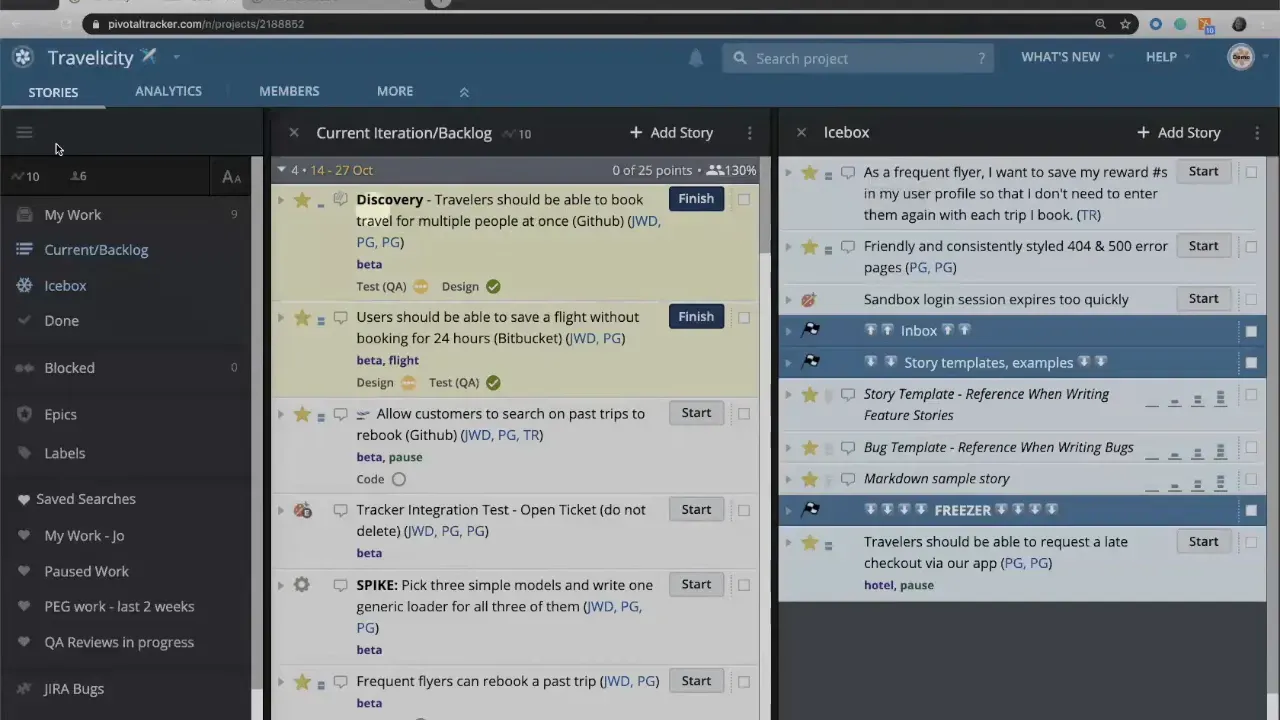
Combining iteration length with team strength produces the adjusted capacity for that single iteration. For example, a base velocity of 10 on a two-week iteration at 130 percent team strength was shown as roughly 25 points of capacity in the demo. LiteTracker uses these inputs so you do not accidentally overload or under-plan that iteration.
Use a longer iteration for work that is larger in scope and cannot be broken into normal-length slices. Use a shorter iteration for focused cleanup, bug-fix sprints, or when you want to squeeze in a one-week experiment between your regular cadence.
Step 3: Run temporary what-if velocity overrides for planning
LiteTracker includes a temporary velocity override for personal what-if scenarios. This control is great when you want to test different outcomes without changing project settings for everyone.
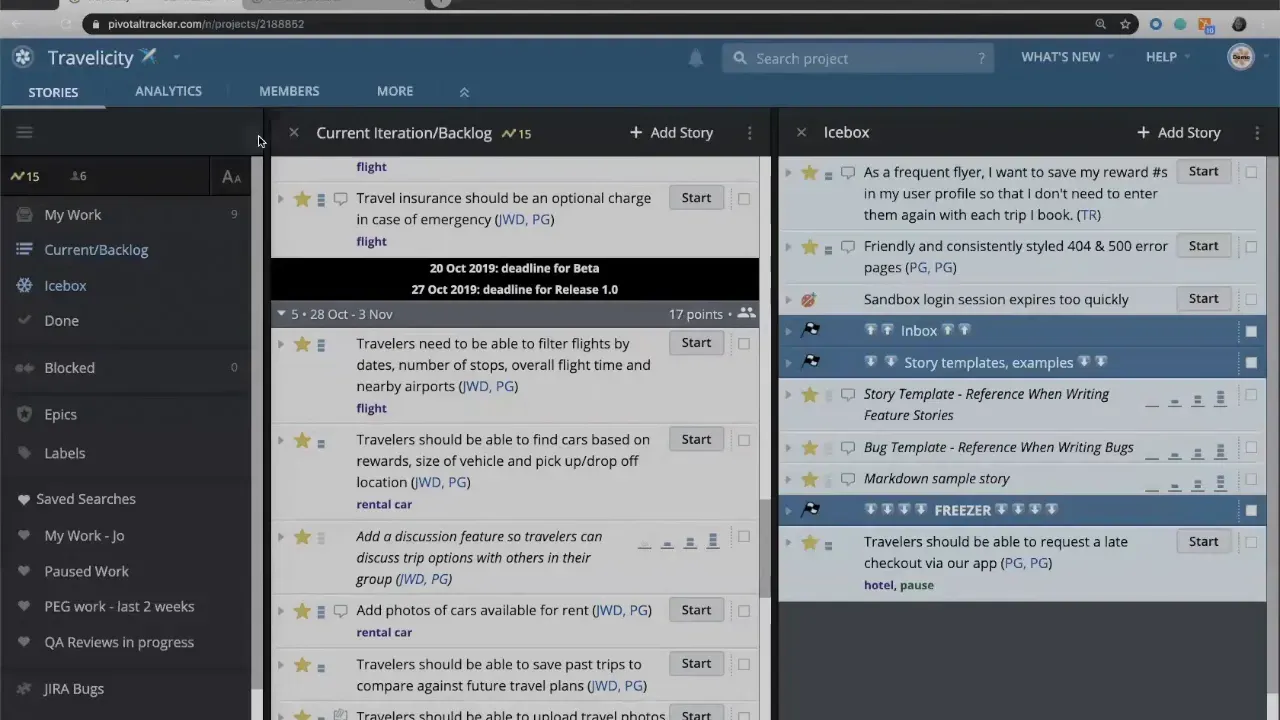
Set your personal temporary velocity to see how additional resources or higher throughput would change story allocation. The override is shown in gold while active, but it does not persist. If you reload your project, the temporary velocity returns to the calculated value. This keeps the real team metrics safe while letting you explore options.
Remember: team strength and iteration length changes persist for the team and the iteration. Temporary velocity overrides are only visible to the person who sets them and automatically revert. Use the temporary override for brainstorming or planning meetings; use team strength and iteration length for real, shared adjustments that reflect the facts on the ground.
Practical checklist for using LiteTracker settings
- Before changing anything confirm the real availability of team members for the iteration.
- Use team strength when headcount or availability changes for the entire iteration.
- Adjust iteration length when the timebox needs to be longer or shorter than your standard cadence.
- Use temporary velocity overrides for individual what-if planning that should not affect running metrics.
- Look for the gold highlight in LiteTracker to spot overridden values quickly.
How LiteTracker decides what fits in an iteration
LiteTracker combines your base velocity, team strength, and iteration length to decide how many story points to allow in a single iteration. That prevents two problems: overcommitting when people are out, and underutilizing when you have extra capacity. The allocation also respects story size; LiteTracker will not split stories in ways that violate your workflow rules. If the next story would push the team over the adjusted point capacity, LiteTracker leaves it for the next iteration.
How does changing team strength affect my running velocity?
Altering team strength for a single iteration does not change your calculated running velocity. LiteTracker treats team strength as a temporary adjustment to capacity for that iteration so your long-term velocity remains accurate and comparable across iterations.
Can I make a permanent change to iteration length for every sprint?
If you need a permanent cadence change, update your project settings rather than changing one iteration. Changing iteration length inside an iteration is intended for one-off adjustments. Use project-level settings for long-term changes to your default iteration length.
Is the what-if velocity override visible to the whole team?
No. The what-if velocity override is a personal, non-persistent setting. Only the person who sets it will see the override and it reverts when the page is reloaded. Use this feature for planning scenarios without affecting others.
When should I increase team strength above 100 percent?
Increase team strength when temporary resources like contractors or interns meaningfully raise capacity for that iteration. This helps LiteTracker allocate more stories into that iteration without impacting your calculated velocity going forward.
What visual cues indicate an overridden setting in LiteTracker?
LiteTracker highlights overridden values in gold so you can see at a glance which iterations have non-default team strength or iteration length. This helps prevent accidental changes from being overlooked.
Closing tips for reliable planning with LiteTracker
Keep changes intentional and documented. If you alter team strength or iteration length, add a short note on the iteration so everyone understands why capacity differs. Use temporary velocity overrides for experimentation only. When you treat LiteTracker settings as the single source of truth for capacity, your backlog and reporting stay aligned with reality.
Apply these steps regularly and LiteTracker will reflect the facts on the ground, helping the team plan realistically and keep velocity metrics meaningful.
Suggested link placeholders
No external URLs were provided in the input. Below are suggested 1–3 word anchor texts and recommended placements for future links:
- team strength — place in the paragraph that explains how to set the peg-people icon.
- iteration length — place in the paragraph describing one-week or two-week changes.
- velocity override — place in the paragraph explaining personal temporary velocity.
Replace the '#' href values with the appropriate URLs when they become available.
Credits: This tutorial is created based on this original video Team strength and iteration length