
LiteTracker gives teams flexibility in how they measure work. One option is to allow bugs and chores to receive story points. This guide explains exactly how to toggle that setting, why Tracker discourages pointing bugs and chores, and the safe ways to undo it if you change your mind. If you use LiteTracker to measure team velocity, this walkthrough will help you decide whether pointing non-feature work belongs in your process.
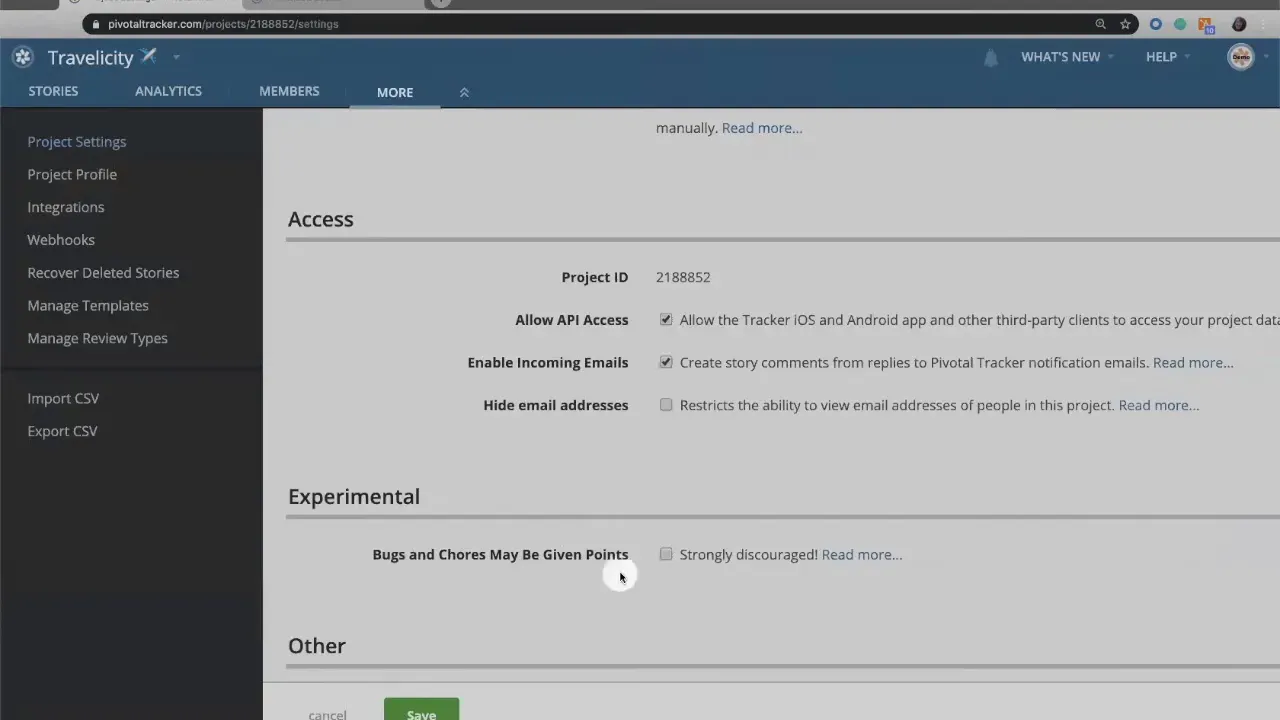
Step 1: Where the setting lives
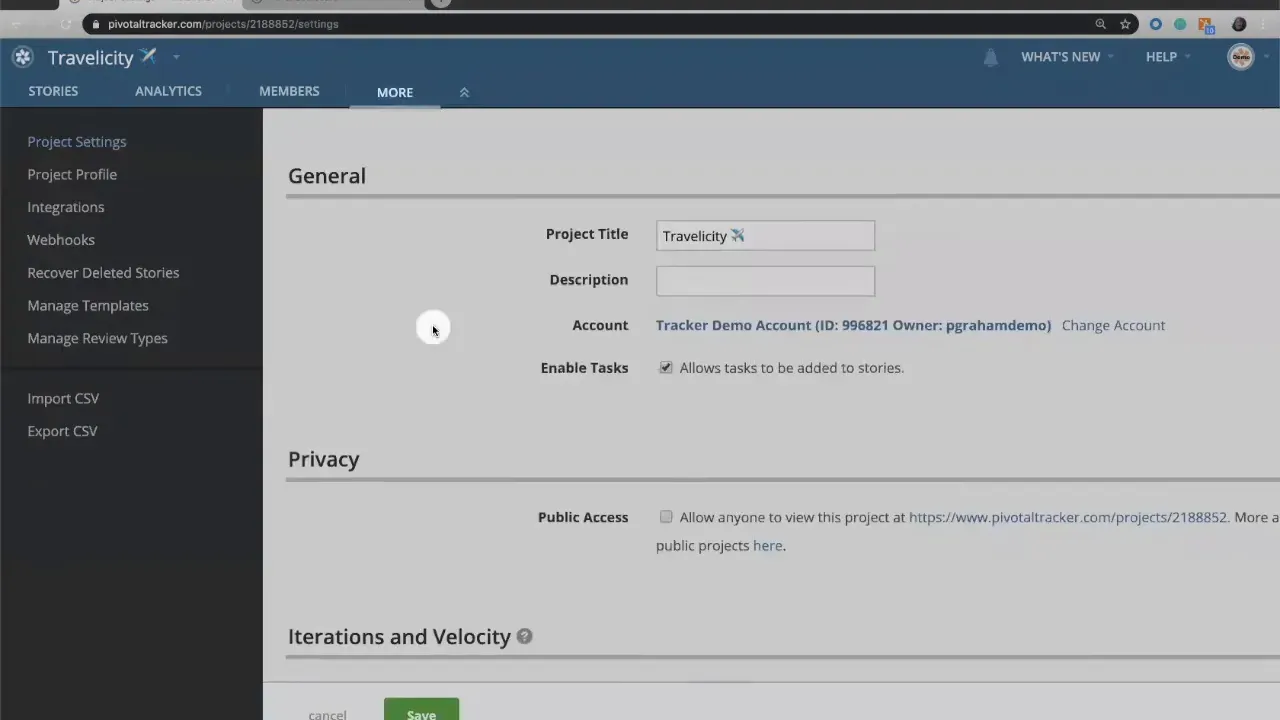
Open your project, click More, and then open Project settings. Scroll down until you find the checkbox labeled "Bugs and Chores may be given points". That single checkbox controls whether non-feature items can be estimated in LiteTracker.
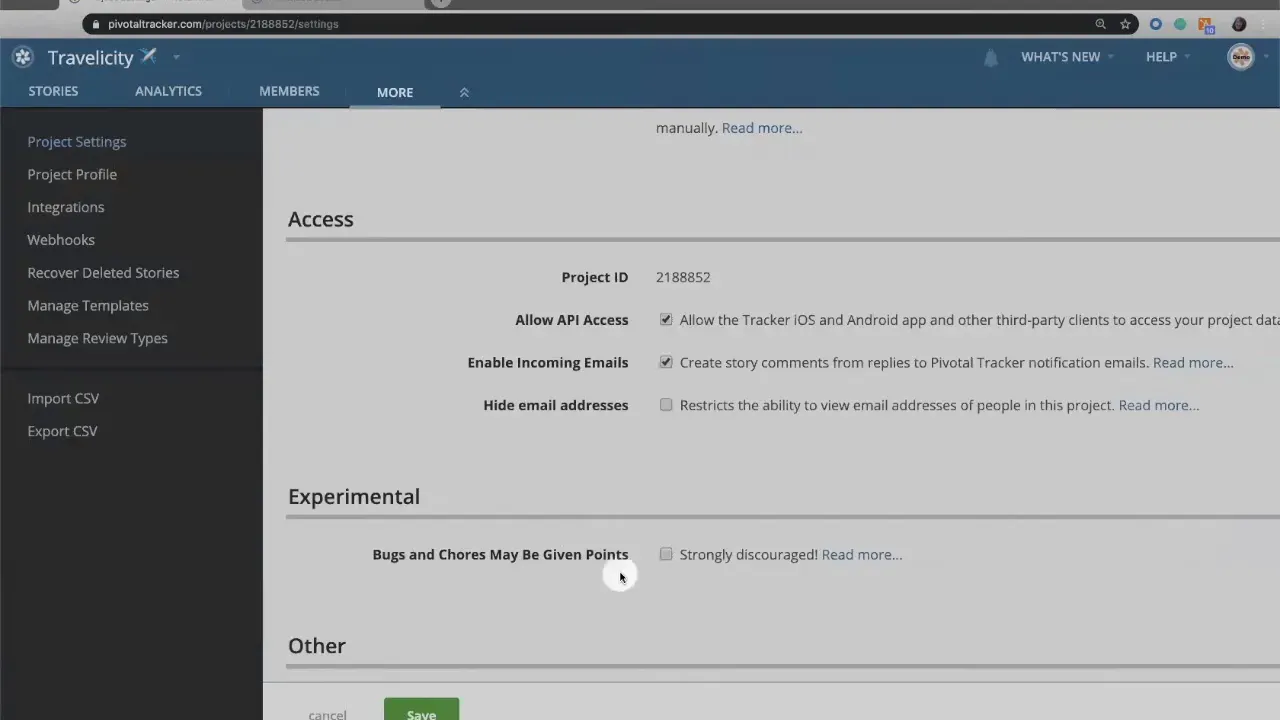
Step 2: Understand the recommended approach
LiteTracker treats feature stories as the primary units that deliver value to end users. Feature stories represent deliberate work to provide functionality or benefits to stakeholders. Bugs and chores, by contrast, usually do not represent new user-facing value. Bugs fix regressions or defects; chores handle internal work such as setting up sandboxes, upgrading environments, or managing dev tooling.
Because bugs and chores generally do not deliver additional product value, the Tracker team strongly discourages pointing them. That discouragement is less about prohibition and more about product-thinking: if your velocity measures everything you do indiscriminately, it can obscure the signal of feature delivery.
Step 3: When it might make sense to enable pointing
Some teams prefer a full accounting of developer time. If your stakeholders want to see the full workload your team handles — not just features — enabling points on bugs and chores can make sense. Use this setting when your organization wants a comprehensive picture of engineering throughput, or when internal work is billable and must be tracked by points.
If you do enable it in LiteTracker, be aware you are choosing a different metric goal: you will measure total developer capacity rather than purely product value.
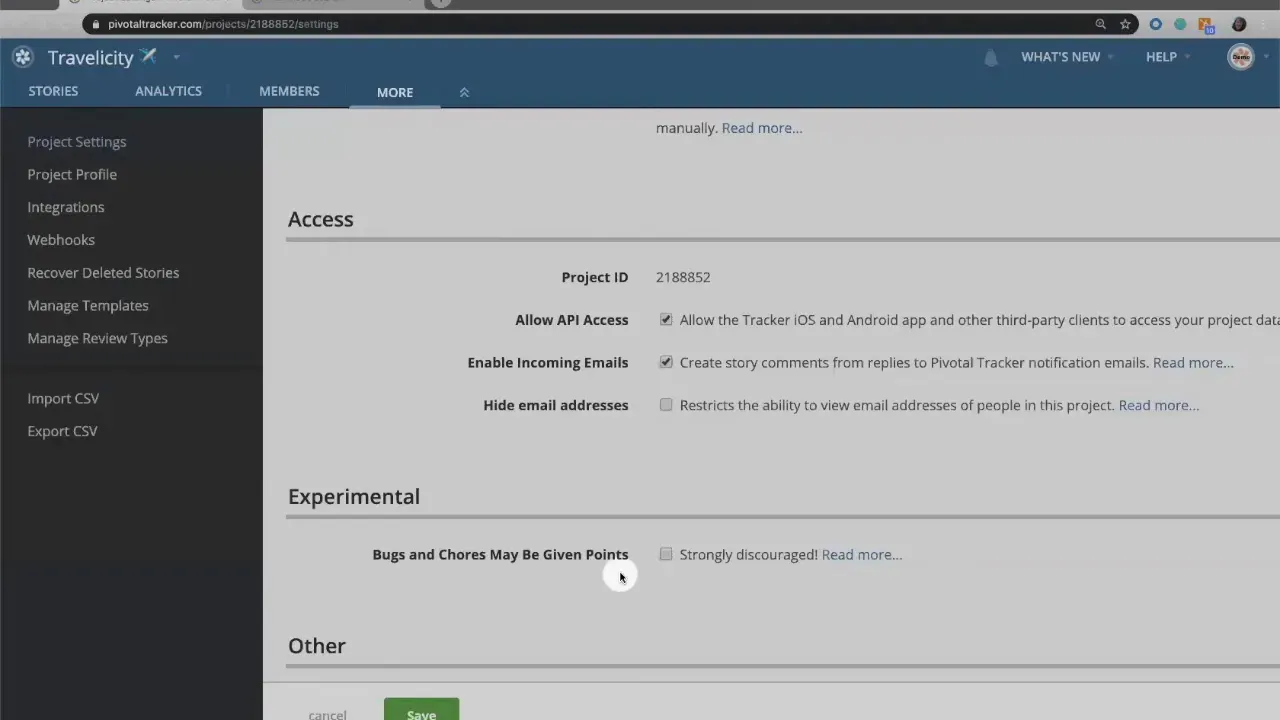
Step 4: How to enable pointing on bugs and chores
- Go to Project settings via More.
- Find "Bugs and Chores may be given points" and check the box.
- Click Save.
Once saved, bugs and chores will show the estimate field and will require an estimate to change status. You will see estimate controls on chores and bugs when you open those stories.
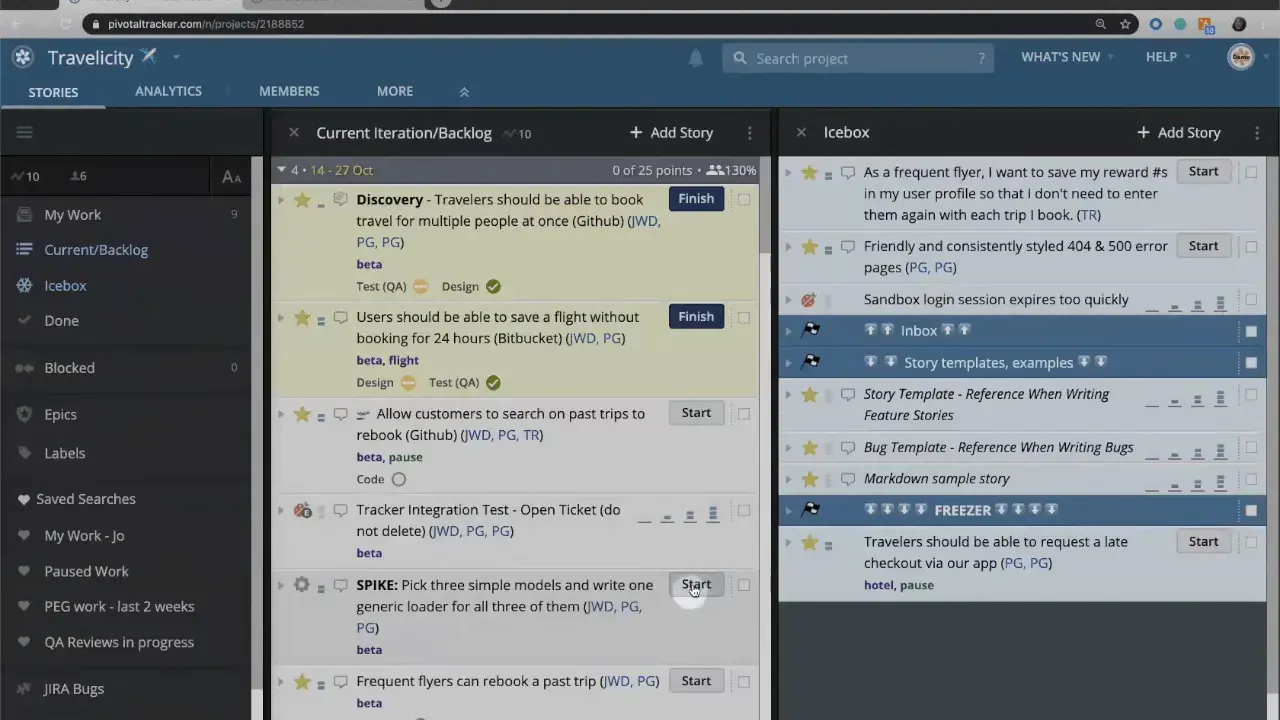
Step 5: Why turning this off is tricky and how to undo it
LiteTracker warns you when enabling this option because disabling it later is not straightforward. Once bugs and chores have point values, the only native way to turn the setting off is to remove those point values from every bug and chore, including ones that are already finished.
To remove points from a finished story you must first revert its state so you can edit the estimate. That means unfinishing or unstarting stories until you can clear their estimate. If you have many pointed bugs and chores, doing this story-by-story is tedious.
Faster undo: Export, edit, import
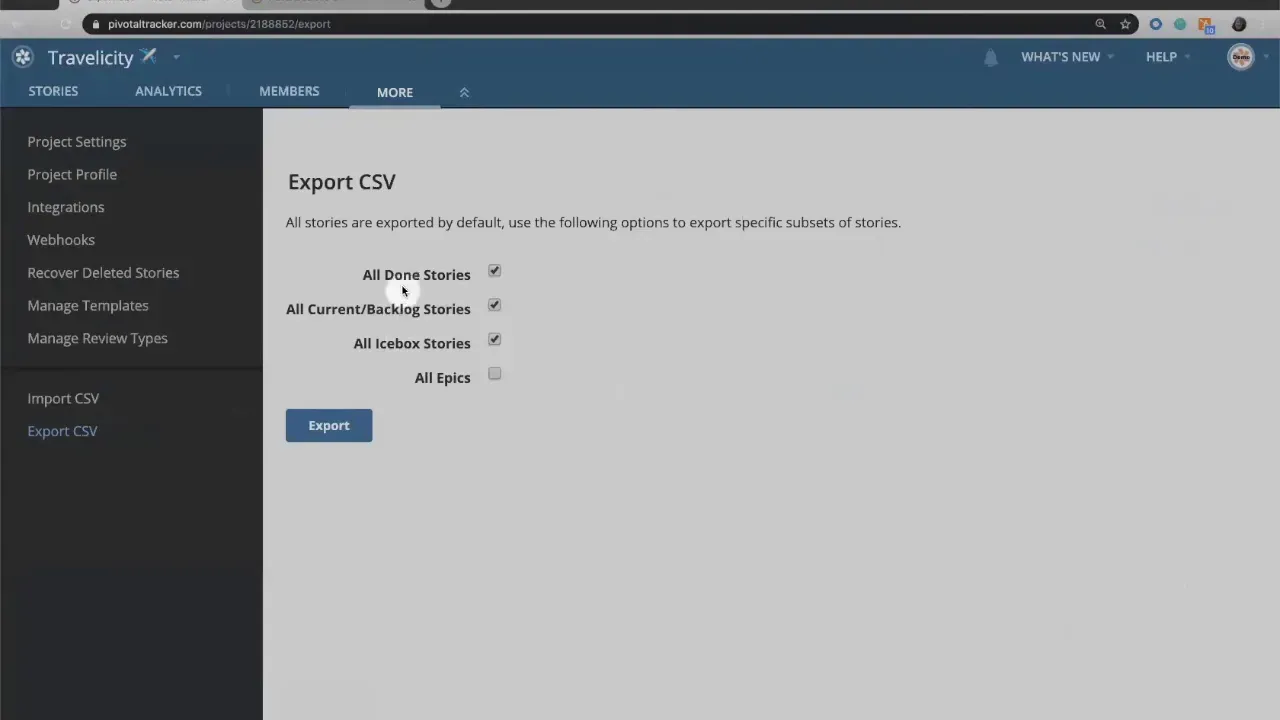
A much faster approach for large projects is to export the project data to CSV, clear or update estimates in the CSV for all affected bugs and chores, and then import the cleaned CSV back into LiteTracker. Export your done stories and your icebox, update the estimate fields, and re-import. This avoids manually unfinishing dozens or hundreds of stories.
Step 6: Best practices and alternatives
Before you flip the switch in LiteTracker, consider these alternatives and safeguards:
- Use tags to mark bugs and chores for reporting without changing your velocity calculation.
- Track time or use a separate accounting metric for maintenance work that must be measured for billing or capacity planning.
- Limit pointing to specific types of chores that are particularly time-consuming, rather than all chores and bugs.
- Document your choice in team norms so everyone understands why bugs or chores are counted or excluded from velocity.
If your team needs to see complete developer workload in LiteTracker, enable the setting and adopt a process for how you estimate bug and chore complexity. If you prefer to signal product value in velocity, keep bugs and chores unpointed and use separate metrics for internal work.
Common scenarios
- Small teams shipping user-facing features: usually keep bugs and chores unpointed to maintain a clear feature velocity.
- Consulting teams billing by effort: often point everything in LiteTracker to align velocity and billing.
- Mixed needs: use tags plus occasional pointing for large chores while keeping most chores unpointed.
FAQ
Can I uncheck the setting after I have pointed bugs and chores?
You can only uncheck the setting after removing points from every bug and chore. For finished stories you must revert their state to clear estimates. For large projects, export the data, remove estimates in CSV, and import the cleaned file back into LiteTracker.
Why does LiteTracker discourage pointing bugs and chores?
LiteTracker encourages measuring product value through feature stories. Bugs fix regressions and chores handle internal maintenance; pointing them mixes internal work with outward-facing feature delivery and can dilute the signal of product progress.
If my team wants to show total developer output, should we enable pointing?
Yes. If your priority is to capture all developer effort in your metrics, enabling points for bugs and chores in LiteTracker will surface full velocity. Just be sure your stakeholders understand that velocity will include internal work.
What is the quickest way to undo many pointed chores and bugs?
Export all relevant stories to CSV, edit the estimate fields in bulk, and re-import. This is significantly faster than manually unstarting and editing each finished story in the UI.
Are there alternatives to pointing everything in LiteTracker?
Yes. Use tags for tracking maintenance, maintain a separate time-tracking system, or selectively point only large chores while keeping small maintenance items unpointed. These approaches preserve feature velocity clarity while still tracking internal effort.
LiteTracker gives you control. Choose the approach that matches your team goals, document it, and use the CSV export/import technique if you ever need to revert a broad change.
Credits: This tutorial is created based on this original video Pointing bugs and chores