This guide shows a clear, practical path to link GitLab repositories with your Tracker workflow using a LiteTracker approach. LiteTracker keeps things simple: set up a webhook, share a secure token, and use story IDs in commit messages so stories update automatically. The goal is a fast, reliable connection between code and stories that developers and product teams can trust.
Step 1: Prepare your LiteTracker project
Open the project you want to connect and navigate to the integrations area. Tracker will list any existing integrations. If you do not yet have a GitLab integration, add one by selecting Add an Integration and choosing GitLab from the list.
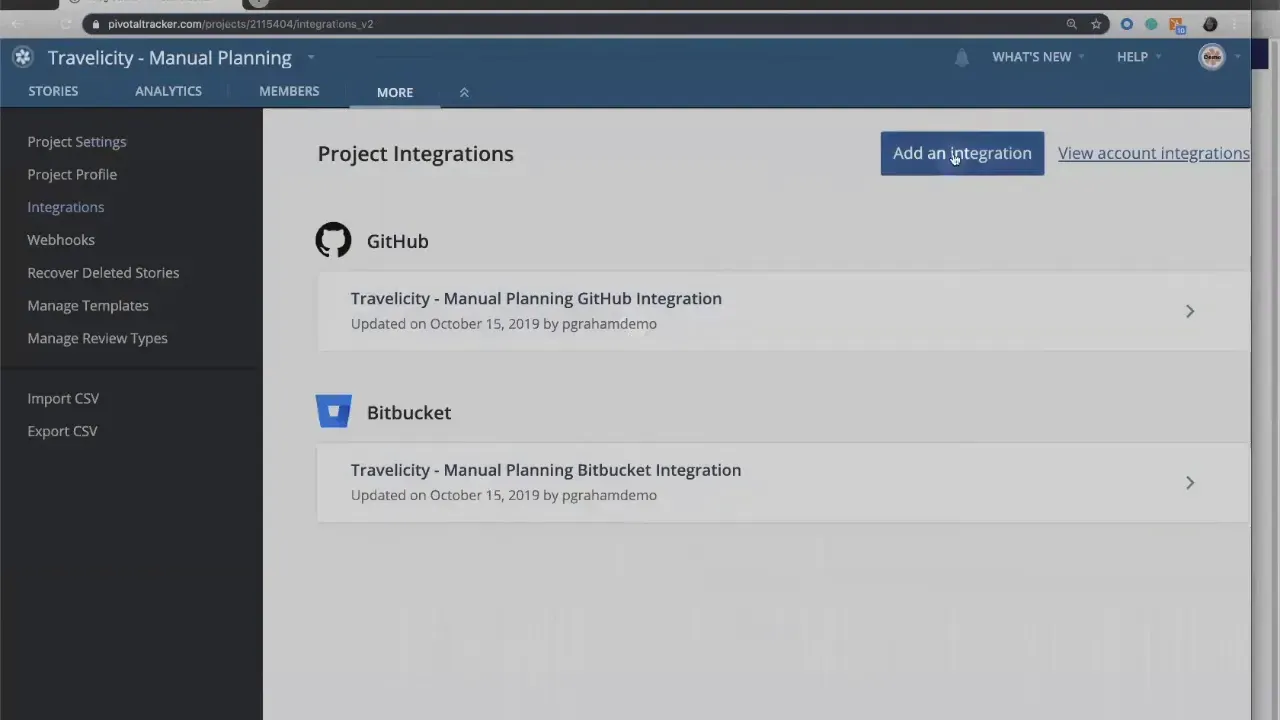
Tracker gives the new integration a default name and preloads the current project. Keep the default or rename and add other projects if you manage multiple repositories. The LiteTracker mindset here is to keep the mapping between Tracker projects and code repositories explicit and minimal.
Step 2: Save the integration to reveal webhook details
Before configuring GitLab you need two pieces of data from Tracker: the payload URL and the secret token. Tracker will generate those only after you save the new integration. Scroll down and click Save. Once saved, copy the payload URL and secret token to your clipboard.
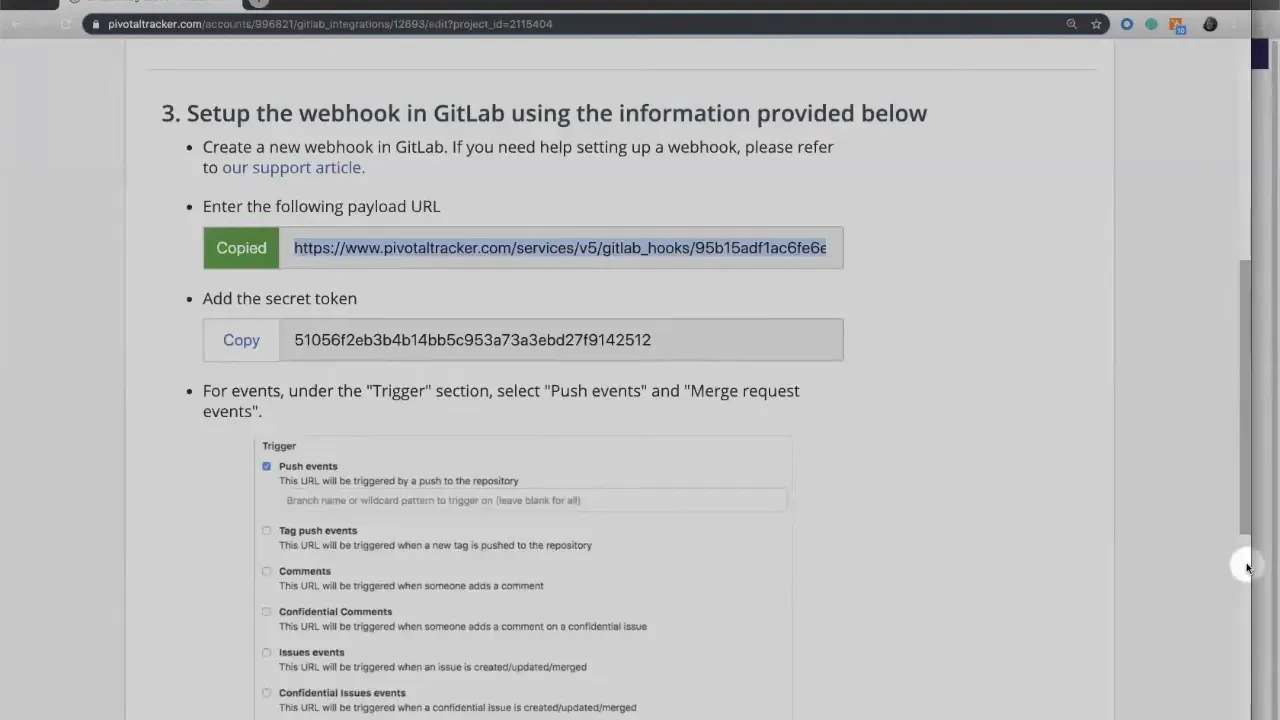
These two values are what GitLab will use to send events back into LiteTracker so commits, branches, and merge requests update stories automatically.
Step 3: Add the webhook in GitLab
Switch to the repository in GitLab and go to Settings > Integrations. Add a new webhook and paste the payload URL into the URL field. Paste the secret token into the token field so GitLab and LiteTracker can verify the connection.
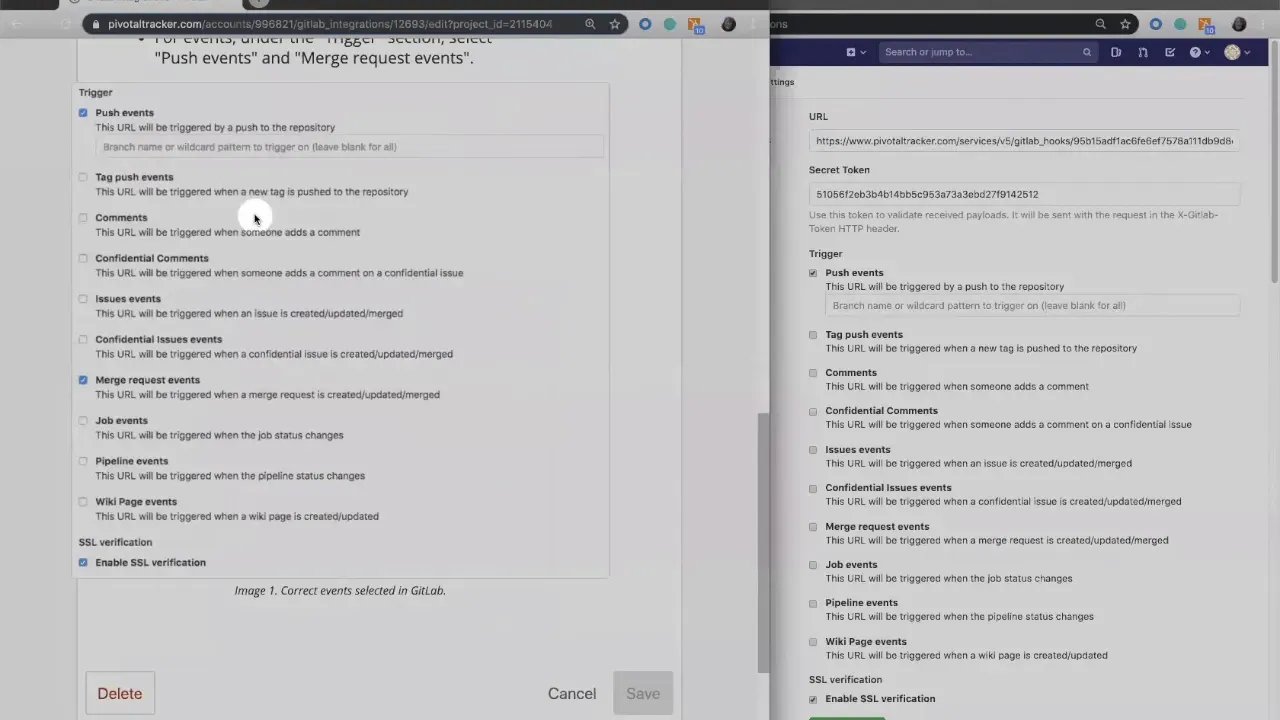
LiteTracker best practices: enable SSL verification and only select events you actually need. At minimum, enable Push and Merge Request events so commits and merge activity are forwarded to Tracker.
Step 4: Configure events and enable SSL verification
Back in GitLab, select the event types Tracker recommended: push events and merge requests. Confirm SSL verification is enabled for secure transport. Then click Add Webhook.
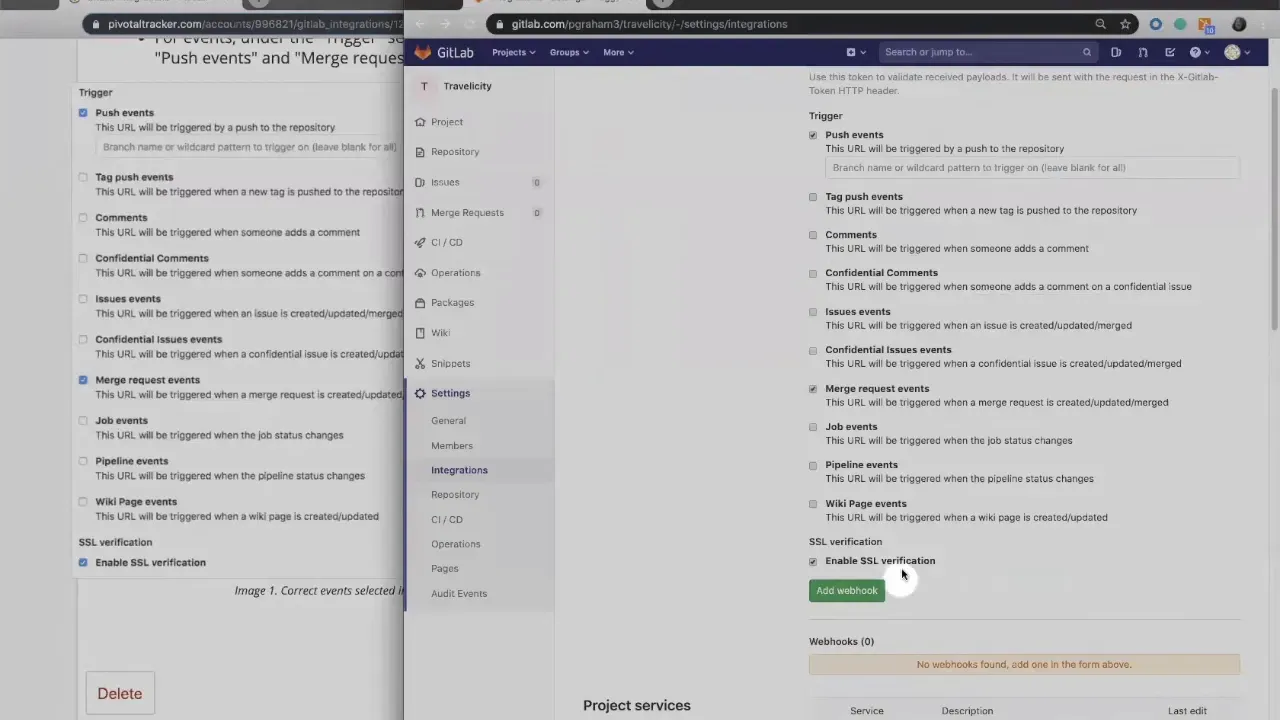
If you follow the LiteTracker approach, you prefer a minimal, secure set of events that map directly to your workflow. Avoid enabling unnecessary events that could clutter story activity logs.
Step 5: Link commits to stories using story IDs
With the webhook established, switch back to Tracker and open a story you want to work on. Copy the story ID from the story header; this ID is how LiteTracker ties source control actions to stories.
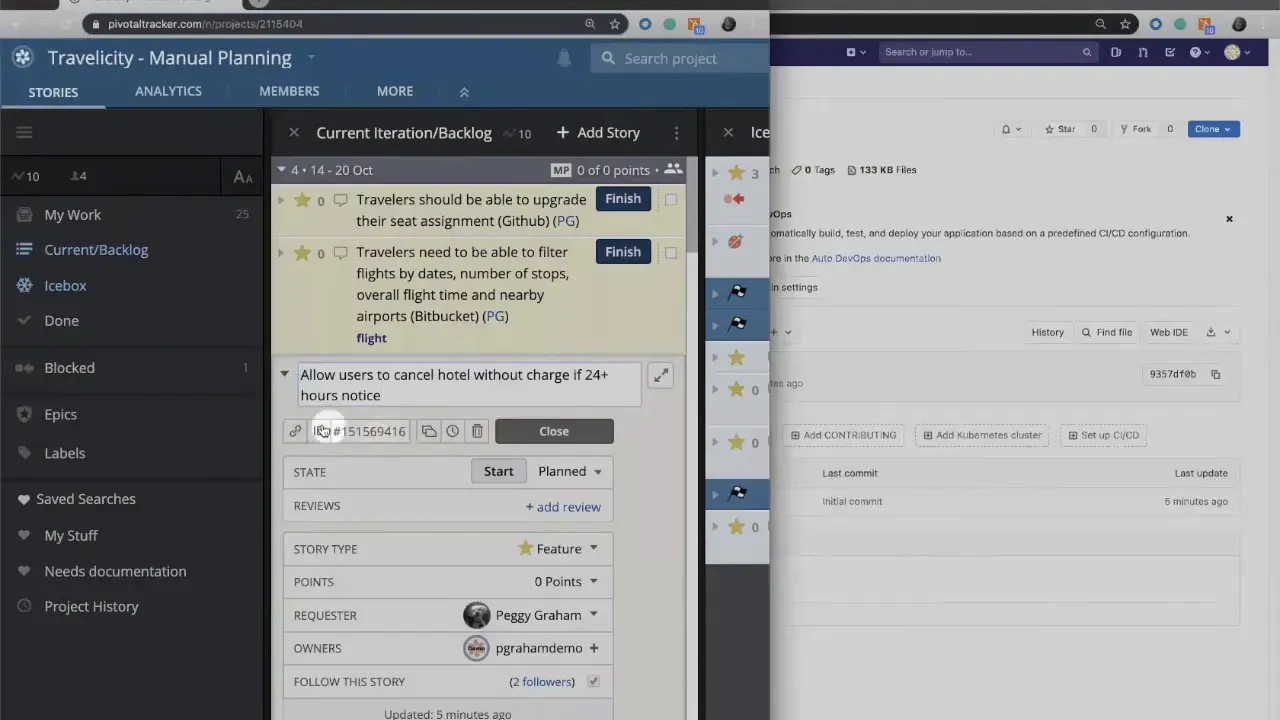
In your repository, make your code changes as usual. When you commit, include the story ID in the commit message. A simple format works well: include the numeric ID somewhere in the message so the LiteTracker integration can parse and match it to the story.
Step 6: Verify updates in Tracker
After the commit is pushed, LiteTracker triggers the integration and updates the corresponding story. Typical updates include automatically moving the story to started when a developer commits work, and appending the commit message to the story activity feed.
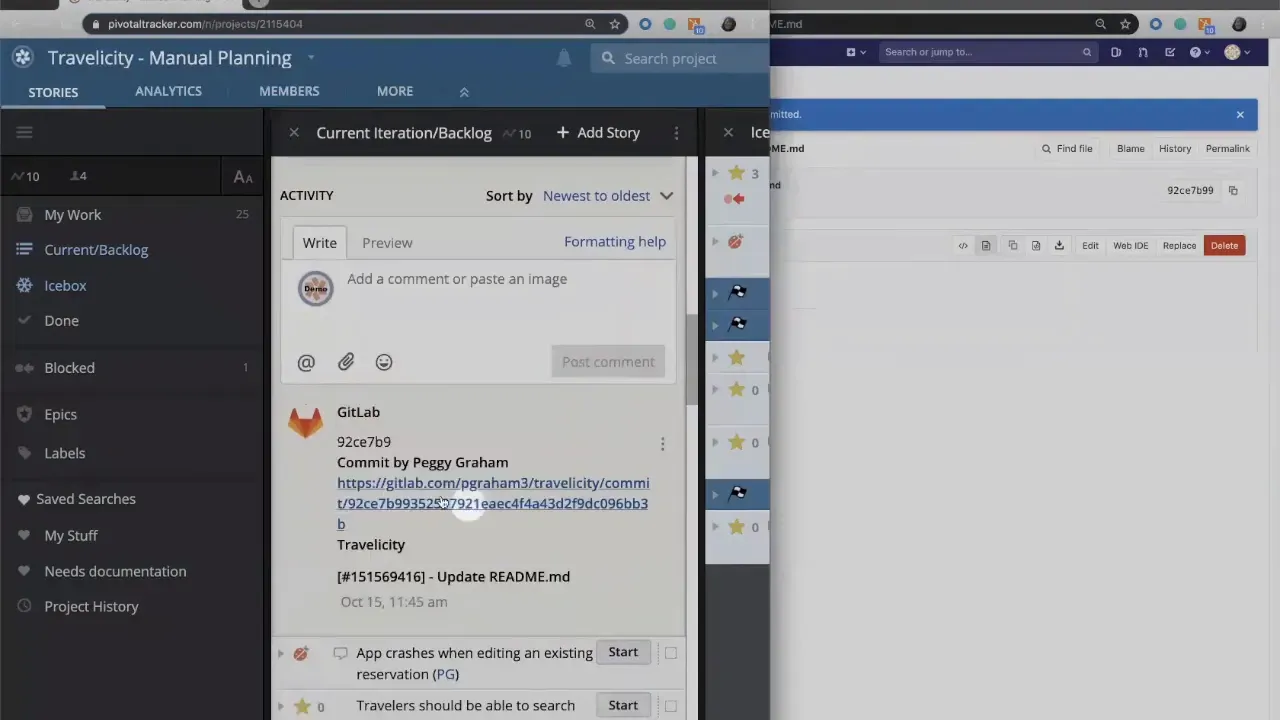
If you create branches or open merge requests that include the story ID, those events will also appear on the story, giving your team an immediate view of code progress without switching tools.
Checklist for a clean LiteTracker integration
- Save the integration in Tracker to generate the payload URL and secret token.
- Paste the payload URL and secret token into GitLab’s webhook settings.
- Enable Push and Merge Request events in GitLab.
- Enable SSL verification to protect webhook traffic.
- Include story IDs in commit messages, branch names, or merge requests.
Why LiteTracker works
LiteTracker emphasizes a minimal, repeatable connection between Tracker and GitLab. It reduces context switching by making story state reflect code activity. Developers keep using GitLab as usual; product managers see progress inside Tracker. The result is a single source of truth for both planning and execution.
Common pitfalls and how to avoid them
- Missing story IDs: Commits that omit the story ID will not link. Make it a development habit to include the ID.
- Incorrect token: If the secret token is mistyped, events won’t be accepted. Copy and paste carefully when configuring the webhook.
- Too many events: Enable only the events you need to prevent noise on stories.
- Multiple projects: If you manage many projects, map each repo to its Tracker project explicitly to keep LiteTracker mappings accurate.
How do I format commit messages so LiteTracker recognizes the story?
Include the numeric story ID in the commit message. For example: "123456789 Update cancellation logic". Keeping the ID plainly visible in the message is the simplest method for automatic linking.
What events should I enable in GitLab for a clean LiteTracker workflow?
Enable at minimum Push and Merge Request events and turn on SSL verification. Avoid enabling extra events unless your process requires them.
Can LiteTracker show branch and merge request activity on the story?
Yes. If branch names or merge requests include the story ID, those events are forwarded and appear on the story timeline just like commits.
What should I do if commits are not appearing on the story?
Check the webhook delivery log in GitLab for errors, verify the secret token matches, confirm the story ID is present in the commit message, and ensure the webhook events are enabled.
Is it possible to connect multiple GitLab repositories to a single Tracker project with LiteTracker?
Yes. When creating the integration in Tracker, add additional projects or repositories as needed. Keep the mapping straightforward so commits from each repo include the correct story IDs.
LiteTracker is about making the integration predictable and low friction: a saved webhook, a secure token, and story IDs in commits give you instant, traceable sync between code and stories.
Follow this step-by-step LiteTracker approach and your team will gain clearer visibility into development work without changing how developers prefer to work. The connection between GitLab and Tracker becomes a lean, dependable bridge that keeps planning and delivery aligned.
Credits: This tutorial is created based on this original video GitLab + Tracker Integration