labels-and-epics-to-slice-your-story-views-in-tracker" target="_blank">Labels are one of the most useful organizing tools in LiteTracker. They let you group related stories, track work across the backlog, and serve as the building blocks for larger initiatives. This guide walks through creating, applying, searching, and converting labels so you can use LiteTracker labels confidently in everyday workflow.
Step 1: Understand labels and how they differ from epics
In LiteTracker, labels are visual tags that appear on stories in green. They indicate related work or context, such as "cruise" for a travel site feature. Epics are larger containers that group related work and appear in purple. Think of labels as lightweight, flexible markers and epics as formal, trackable initiatives.
Use labels when you want to quickly flag stories that share a theme or need the same handling. Convert a label to an epic later if the work becomes a multi-story project you want to track with dates and progress metrics in LiteTracker.
Step 2: Find related stories and create a label
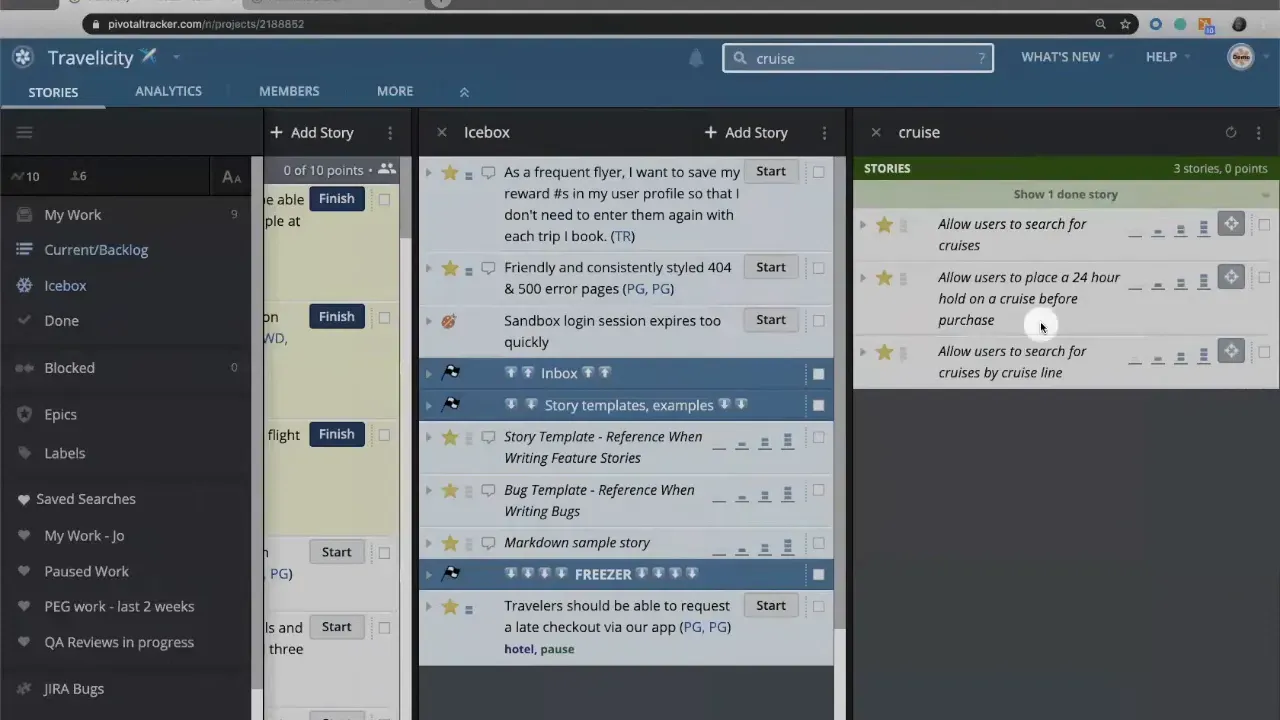
Start by searching for a keyword that identifies the work you want to group. For example, search for the word "cruise" to collect every story that mentions cruising features.
Once the search returns the stories, select them and create a new label. If the label name does not already exist, LiteTracker will create it for you. Apply the label to all selected stories so they can be retrieved quickly later.
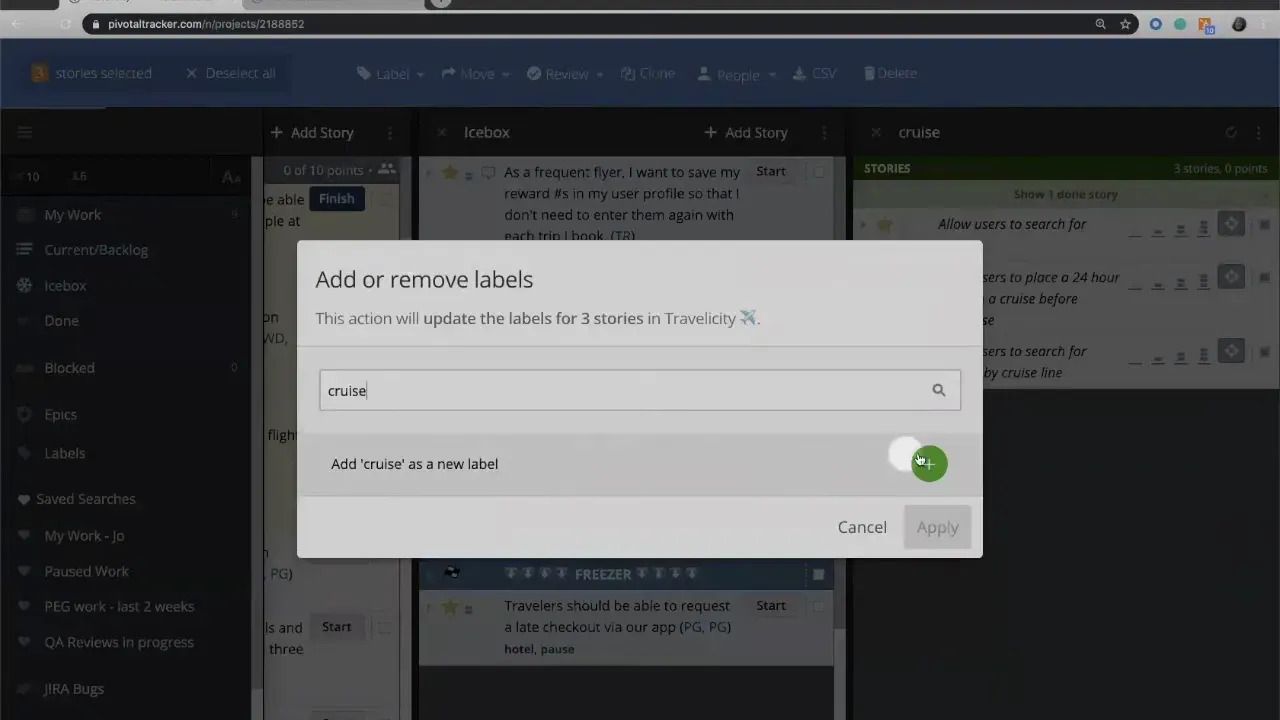
Creating labels this way is fast and reduces manual tagging. It also keeps your LiteTracker board consistent because similar stories get consistently labeled right away.
Step 3: Search and navigate using labels
There are two quick ways to find all stories with a specific label in LiteTracker:
- Type the search query, for example label:is cruise, into the search field to retrieve every story with that label.
- Click any visible label on a story. LiteTracker will run the same label search automatically for you.
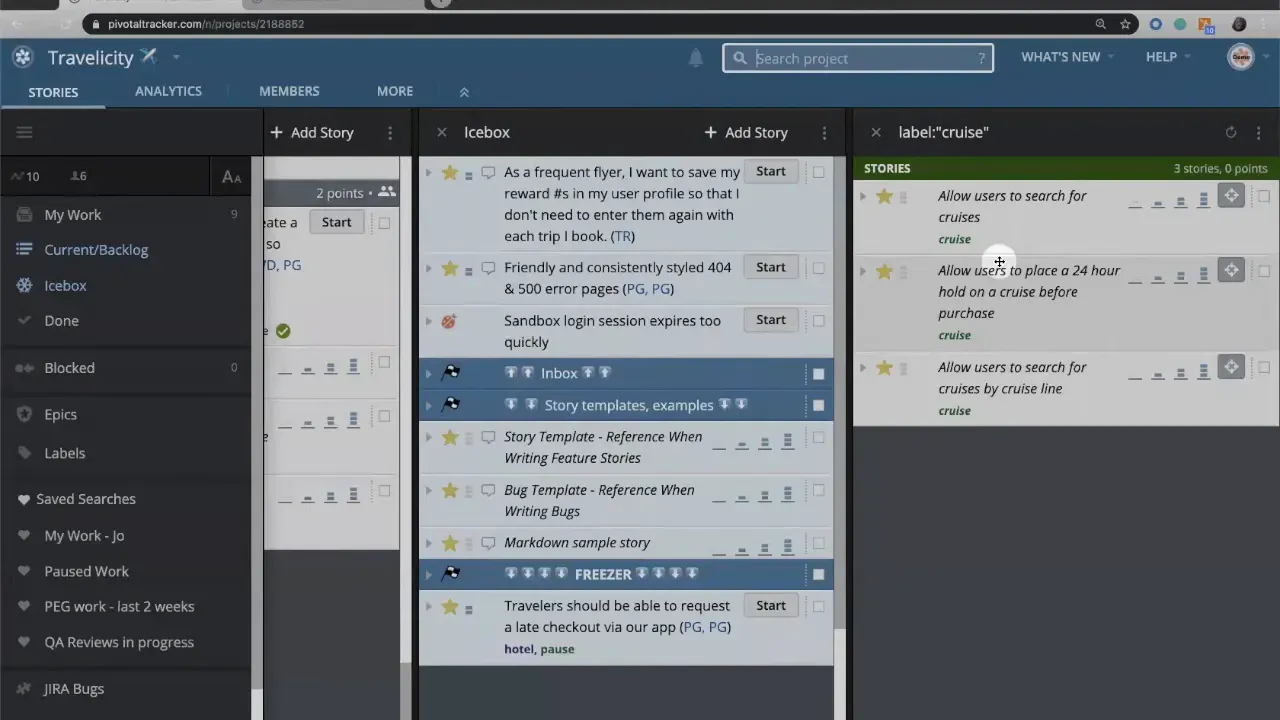
Both methods are useful. Typing gives you control and allows compound queries. Clicking a label is the fastest way to jump from an individual story to the larger set of related work.
Step 4: Convert a label to an epic and back
As a project grows, a label may evolve into an epic. Open the label panel to view labels in green and epics in purple. If you decide a label deserves formal tracking, convert it to an epic with a single action. LiteTracker will switch the color and add the epic to your epic list.
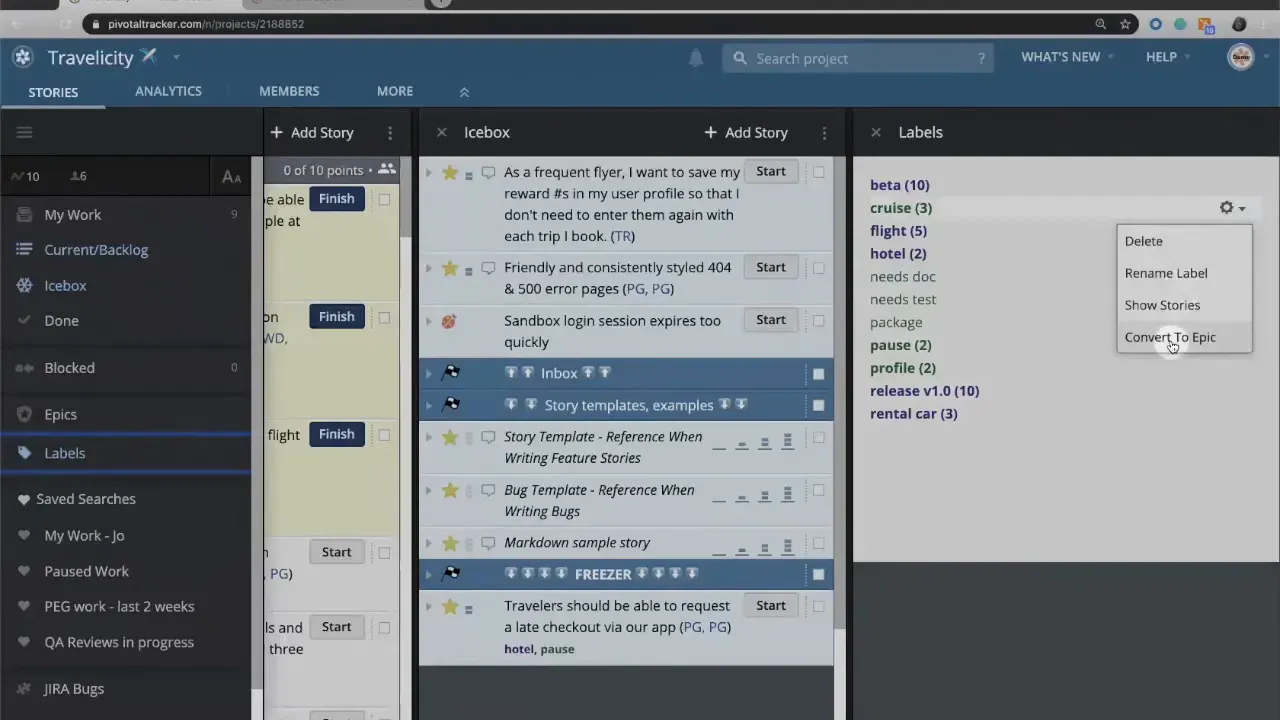
When a label becomes an epic, you can hover over it to see metadata such as the projected completion date and how many stories are prioritized under that epic. That visibility helps when you need to communicate timelines or evaluate progress.
If the decision changes, you can delete the epic without deleting the stories themselves. The stories will remain and the epic can revert to a plain label if you prefer. This back-and-forth flexibility makes LiteTracker forgiving when priorities shift.
Step 5: Use labels for workflow signals like paused or needs-discussion
Labels are not only for features. Use them to mark stories that require special handling:
- paused: Work began but was intentionally shelved. Tagging with paused surfaces work that already has partial progress and gives a head start when resuming.
- needs-discussion: Stories requiring clarification before work continues.
- blocked: External dependencies are preventing completion.
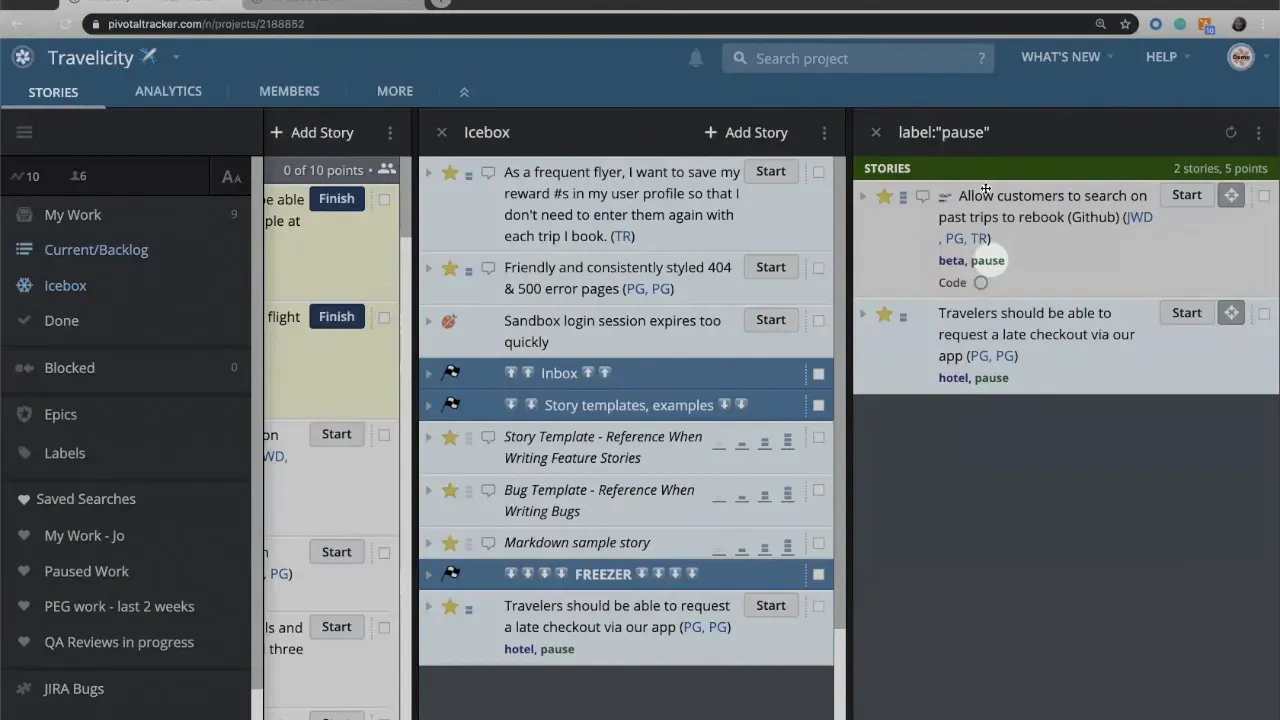
Clicking a paused label will show every story you have previously unstarted or tucked away, so you can easily triage what to resume. This pattern keeps LiteTracker organized and prevents lost context when priorities change.
Step 6: Practical tips and best practices
Adopt small conventions to make labels more powerful in LiteTracker:
- Be consistent with naming. Use singular or plural consistently, and decide whether to include project prefixes like "cruise-".
- Limit label proliferation. Too many labels dilute their usefulness. Keep a curated list for recurring categories.
- Convert when needed. If a label accrues a set of prioritized stories and dates, convert it to an epic to gain progress tracking features.
- Use labels for process. Tags such as paused, blocked, or needs-discussion help triage and plan work across the team.
- Search smart. Combine label searches with other filters to build dashboards or exports that support meetings and planning sessions.
Applying these small habits in LiteTracker turns labels into a dependable layer of structure rather than ad hoc notes. They help you move faster and keep information discoverable.
FAQ
What is the difference between a label and an epic?
A label is a lightweight tag used to group related stories and appears in green. An epic is a formal grouping used for larger initiatives that you want to track with progress and timelines; epics appear in purple. Labels can be converted into epics if the scope grows.
Can I delete an epic without losing the stories?
Yes. Deleting an epic in LiteTracker removes the epic container but does not delete the stories associated with it. The stories will revert to being labeled items if the epic is removed.
How do I apply a label to multiple stories at once?
Search for the keyword that identifies the related stories, select them in the search results, then create or choose a label and apply it. This bulk action is the most efficient way to tag many stories at once in LiteTracker.
Any tips for naming labels?
Use short, consistent names and avoid synonyms that create duplicates. Decide whether to use prefixes for cross-cutting concerns like paused or blocked. Consistent naming keeps LiteTracker searches reliable and reduces confusion over time.
When should I convert a label to an epic?
Convert a label to an epic when the grouped work becomes a visible initiative with several prioritized stories, a target completion date, or when stakeholder tracking is required. LiteTracker makes conversion easy so you can promote a label when the timing is right.
Closing notes
Labels are one of the most used elements in LiteTracker because they are simple yet flexible. Use them to group features, indicate workflow status, and prepare work for epic-level tracking. With a few naming conventions and the habit of applying labels consistently, your LiteTracker board will become more navigable and decisions will be easier to communicate.
Try creating a label for a small theme today, apply it to a handful of stories, and see how quickly it improves searchability and context across your backlog.
Extra tips and templates
Use these quick templates and examples to standardize labels across your LiteTracker board. Copy them into your team handbook or a pinned project note so everyone applies the same conventions.
-
Project prefix:
cruise-booking,cruise-search -
Workflow signals:
paused,blocked,needs-discussion -
Persona or area:
mobile,admin,performance
Label governance checklist:
- Decide singular vs. plural and apply consistently (e.g.,
featurevsfeatures). - Limit labels to categories your team actually queries—archive rare or one-off tags.
- Schedule a quarterly review to merge synonyms and remove stale tags.
Example workflow: when a theme accrues three or more prioritized stories and a target date, promote the label to an epic so you can track progress with dates and metrics. Keep a short note in your project docs explaining when to convert labels to epics to reduce guesswork.
If you want, paste these guidelines into a shared document for your team and add links to your internal LiteTracker help pages or examples later.
Credits: This tutorial is created based on this original video How to Create Labels