LiteTracker helps teams spot and clear roadblocks before they derail delivery. When work depends on someone else or another item, that dependency becomes meaningful only when it prevents progress. This guide walks through a clear, step by step approach to using blockers inside LiteTracker so your team stays aligned, notified, and moving forward.
Step 1: Recognize when a story is blocked
A blocker is any person or story that must act before a task can procede. Common examples include waiting on a designer to answer a UI question or waiting on an investigation spike to determine the correct data model. In LiteTracker, a blocked story shows a clear visual cue: a red arrow that signals stop.
"red like a stop sign indicating that it's being blocked."
Start by asking: what exactly is preventing progress? If the answer is "another person" or "another story," mark it as a blocker right away so the rest of the team knows why the task cannot move forward.
Step 2: Add a person as a blocker
When the obstacle is a person, add them directly to the story as a blocker. Enter their role or name and a short note describing why you need them. LiteTracker will notify that person via in-app notifications, email, or Slack if they have integrations enabled.
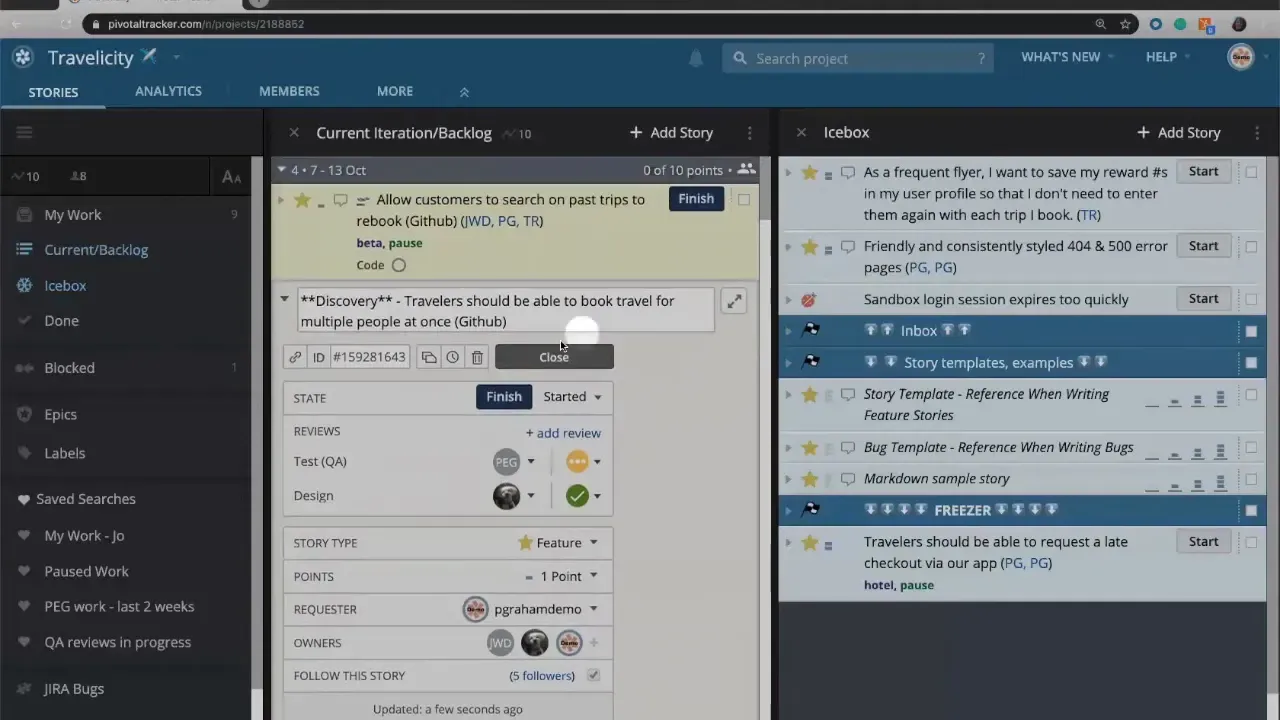
Best practices when adding a person as a blocker:
- Be specific. Describe the exact answer or asset you need (for example, "need final UI specs for the profile card").
- Link supporting material. Attach mockups or add URLs so the blocker can take action quickly.
- Keep the tone actionable. Request the next step, not a vague "please help."
Step 3: Resolve the blocker and communicate clearly
Once the person provides what you need, post a comment on the story with the deliverable — a URL, an attachment, or the design file itself — then clear the blocker. Clearing the blocker tells the team the work can continue.
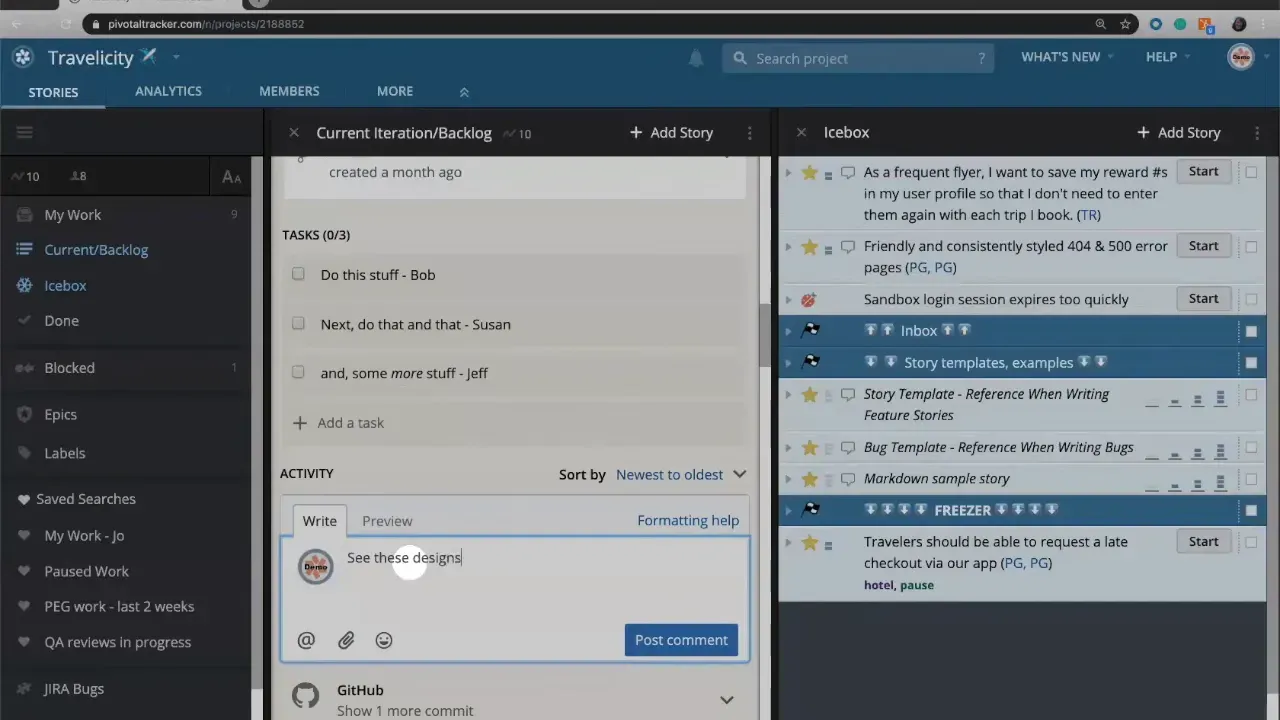
When you clear a blocker in LiteTracker, the red arrow disappears and the story looks ready to proceed. This small act reduces follow-up friction and prevents duplicate asks.
Step 4: Use a story as a blocker to represent dependencies
Sometimes the blocker is not a person but another story. For example, a design spike may determine which data model to use. Until that spike is resolved, the feature story that depends on it cannot proceed. LiteTracker supports linking stories by ID to show these dependencies explicitly.
To create that link, copy the ID from the blocking story and paste it into the blocked story's blocker field. Add a short comment such as "results of spike will tell us how to move forward" so the intent is clear.
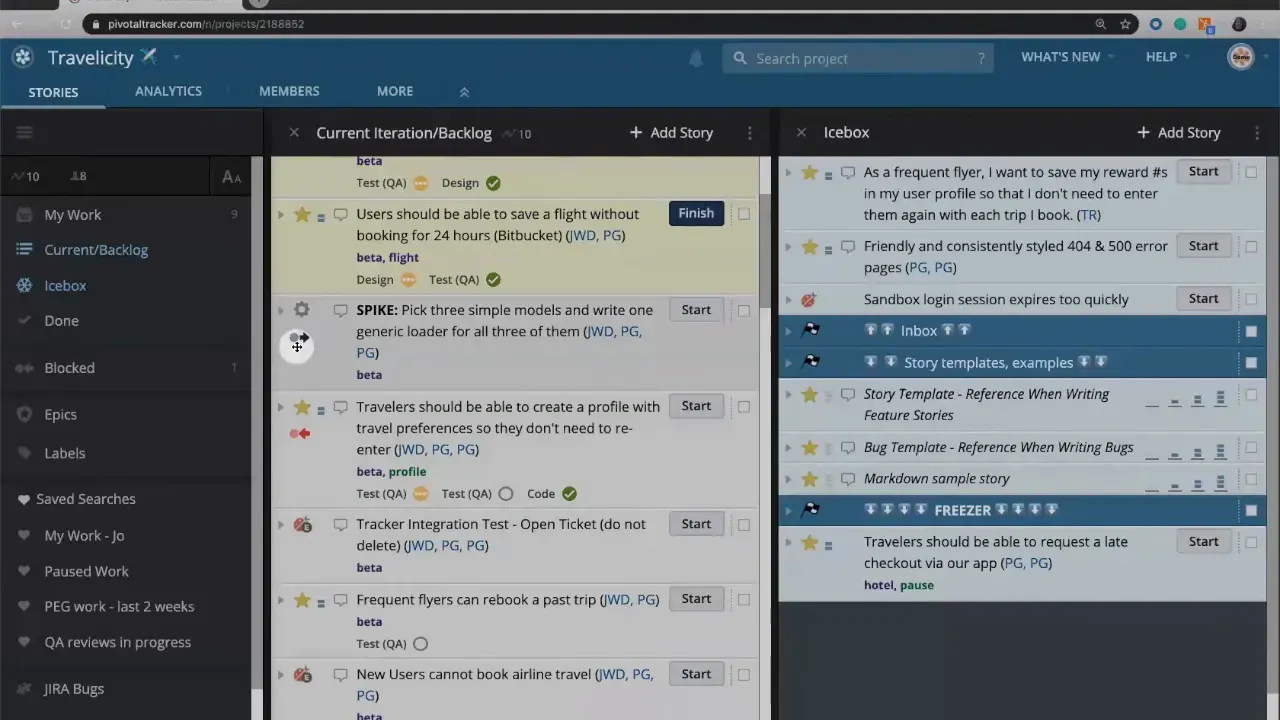
When stories are linked this way, LiteTracker shows two arrows: a blue arrow on the blocking story to indicate it is holding up other work, and a red arrow on the blocked story to indicate it cannot proceed.
Step 5: Track progress and automatic clearing
As the blocking story moves to completion, LiteTracker updates the blocked story automatically. If the blocking item is finished, the blocker clears and becomes visually grayed out to show it was resolved.
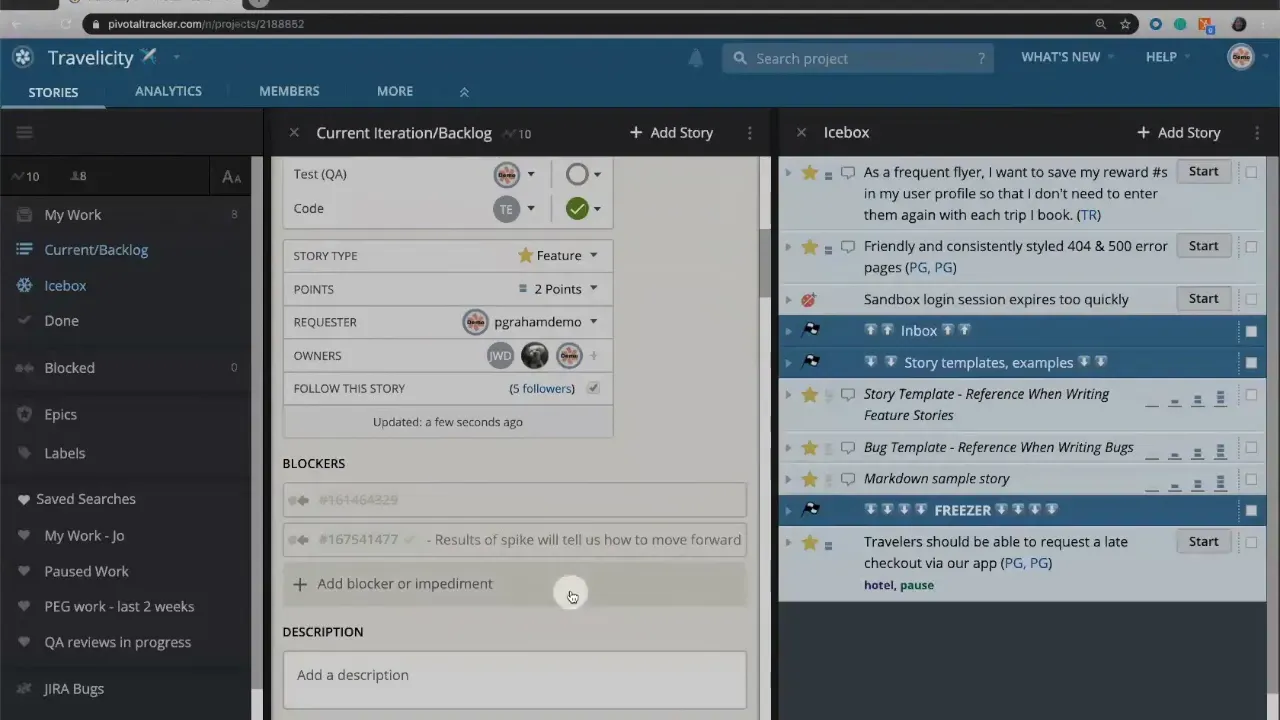
This automatic clearing prevents stale blockers cluttering your board and signals to developers and product owners that it's time to pick the task back up. It also reduces manual overhead for project leads who otherwise spend time checking on dependent work.
Step 6: Practical workflow tips for teams using LiteTracker
- Notify with purpose. Add blockers as soon as a dependency is known so notifications reach the right people early.
- Keep blocker comments concise. Attach links or sketches and outline the remaining question in one line.
- Use spikes deliberately. If you need to investigate, create a spike story and link it as a blocker so its priority is visible.
- Review blockers in planning. During standups or planning, surface any red arrows and decide who owns resolving them.
- Make ownership explicit. When adding a person as a blocker, include the expected deliverable and a due date if appropriate.
Step 7: Visual cues and what they mean
Understanding the icons speeds up triage. In LiteTracker:
- Red arrow means the story is blocked and cannot proceed.
- Blue arrow means the story is blocking other work and should be prioritized accordingly.
- Grayed out blocker means the dependency was resolved after the blocking story finished.
"So blue for blocker, but it is blocking other work."
These cues make the cost of waiting visible so teams can make better prioritization decisions.
Step 8: Sample checklist when you encounter a blocker
- Identify if the blocker is a person or another story.
- Add the blocker to the story with a clear reason.
- Attach any supporting files or links to reduce back-and-forth.
- Notify the blocker and set expectations for response.
- Clear the blocker once the dependency is resolved and document the result.
How does LiteTracker notify someone when they are added as a blocker?
LiteTracker sends notifications through in-app alerts, email, or Slack if integrations are enabled, ensuring the person added as a blocker receives the message in their preferred channel.
Can one story block multiple stories in LiteTracker?
Yes. A single story that acts as a core dependency can block multiple other stories. The blocking story will show a blue arrow to indicate it is holding up other work.
Will LiteTracker clear blockers automatically when a blocking story finishes?
Yes. When the blocking story is marked finished, LiteTracker automatically clears the blocker on dependent stories and visually grays out the resolved blocker.
Should blockers always be added as stories rather than comments?
If the blocker is an actionable dependency, linking it as a story makes it discoverable and trackable. For quick clarifications, a comment may suffice, but converting that into a blocker story is better for cross-team visibility.
What is the best way to describe a blocker in the comment field?
Be concise and concrete. State the remaining decision or asset, include links or attachments, and, if possible, suggest the next step or deadline to reduce ambiguity.
Using LiteTracker to manage blockers turns hidden dependencies into visible, actionable items. By adding clear notes, attaching evidence, and leveraging automatic updates, teams reduce wait time and improve flow. Treat blockers as signals: they reveal where to focus effort to unlock delivery.
No external links were provided in the input. I couldn't insert any links because the supplied list was empty. If you provide URLs, I can place them inline using 1–3 word anchor text. Suggested anchor texts and likely insertion points:
- LiteTracker — near the first paragraph that introduces the product.
- blocker field — in the paragraph that explains copying the ID into the blocked story's blocker field.
- spike story — where the guide recommends creating a spike story for investigations.
- automatic clearing — in the section describing how LiteTracker clears blockers when a blocking story finishes.
Reply with a list of URLs and I will return a JSON object with exact placements (the 1–3 word anchor text and the corresponding URLs) ready to insert into the blog post.
Credits: This tutorial is created based on this original video Blockers in Tracker